
What Is a Mirror Build Guide – and Why You Should Build One
A mirror build guide walks you through creating a smart mirror: a standard display hidden behind two-way mirror glass that shows useful information while still reflecting your face.
Here is what a basic smart mirror build involves:
- A two-way mirror – reflects light from the front while letting the screen show through from behind
- A monitor or display – sits behind the mirror, ideally 300+ nits brightness for visibility
- A Raspberry Pi – the small computer that powers the whole thing (Pi 4 is most popular)
- MagicMirror2 software – free, open-source, and built specifically for this kind of project
- A frame or enclosure – houses everything and keeps it wall-ready
Think of it like this: the two-way mirror works because it reflects roughly half the light that hits it while letting the other half pass through. When the room is bright and the screen is off, you see a mirror. When the screen is on and bright, the display shows through clearly.
If you want a quick technical overview of how this type of glass works, the two-way mirror article on Wikipedia is a useful external reference before you start buying parts.
The result? A functional, futuristic display that looks like something out of a sci-fi movie – but built in a weekend with off-the-shelf parts.
Smart mirrors have been popular in maker communities for years. MagicMirror2 even won the Raspberry Pi community vote in The MagPi magazine’s 50th issue. The software now has hundreds of third-party modules covering everything from weather and calendars to Spotify and Home Assistant.
Whether you’re a first-time builder or an experienced maker, this guide covers every step: hardware selection, frame construction, software setup, and advanced integrations.
Essential Hardware for Your Mirror Build Guide
Before we start cutting wood or coding, we need to gather our “ingredients.” A successful mirror build guide relies on choosing components that play well together. If we pick a weak power supply or a dim monitor, our “magic” mirror will look more like a dark piece of glass.
The Brain: Raspberry Pi
The Raspberry Pi is the heart of the operation. While several models exist, we generally recommend two specific versions:
- Raspberry Pi 4 (4GB or 8GB): This is the gold standard. It has enough “oomph” to handle complex animations, multiple modules, and even voice recognition without breaking a sweat.
- Raspberry Pi 3A+: If we are aiming for a “super-slim” build, the 3A+ is a fantastic choice. It has a smaller footprint and lower profile, though it lacks the raw power of the Pi 4.
For more details on why these parts matter, check out our guide on essential-materials-for-your-smart-mirror.
The Mirror: Glass vs. Acrylic
This is often the most expensive part of the build. We have two main choices: two-way glass or two-way acrylic.
| Feature | Two-Way Glass | Two-Way Acrylic (Plexiglass) |
|---|---|---|
| Reflectivity | Superior, crisp reflection | Good, but can have “funhouse” distortion |
| Durability | Scratch-resistant | Scratches easily |
| Weight | Very heavy | Lightweight |
| Cost | Expensive ($100+) | Affordable ($20-$50) |
| Safety | Can shatter | Shatter-resistant |
For beginners, we often suggest starting with acrylic to keep costs down, but for a permanent living room fixture, glass is worth the investment. You can find more tips in The Ultimate Guide to Building a Two-Way Smart Mirror.
Power and Cables
Don’t overlook the power supply! A common mistake is using a cheap phone charger. We need a dedicated 5V 3A USB-C power supply (for the Pi 4) to avoid the dreaded “lightning bolt” undervoltage icon. We also need a high-quality microSD card (16GB minimum, Class 10) and a short HDMI cable to connect the Pi to the monitor.
Choosing the Right Display for a Mirror Build Guide
The display is what makes the information “pop” through the glass. Not all monitors are created equal.
- Brightness is King: We need a minimum of 250-300 nits (cd/m²). Anything lower, and the text will look muddy and dim behind the mirror.
- IPS Technology: In-Plane Switching (IPS) panels offer much better viewing angles than TN panels. This is crucial because we aren’t always looking at the mirror perfectly straight-on.
- Bezel Size: The thinner the bezel, the easier it is to fit into a frame. Better yet, many builders choose to “de-bezel” the monitor entirely.
When selecting your screen, consider creating-a-smart-mirror-frame-a-diy-guide to ensure your enclosure can actually hold the weight and size of the panel.
Safe Monitor Disassembly for a Mirror Build Guide
To get that ultra-slim look, we often need to strip the monitor down to its bare panel. This process is called “de-bezeling.”
- Preparation: Unplug everything and lay the monitor face-down on a soft towel.
- Heat it Up: Use a hairdryer on low heat around the edges to soften any adhesive holding the plastic frame together.
- Pry Gently: Using a plastic pry tool (or an old credit card), slowly work your way around the seam. Avoid using metal screwdrivers, as they can crack the screen.
- Internal Electronics: Once the plastic is off, you’ll see the controller board and buttons. Use VHB (Very High Bond) tape or heavy-duty duct tape to secure these components to the back of the panel.
- Safety First: Ensure no bare wires are touching the metal back of the LCD. Use electrical tape to insulate connections.
For a more detailed walkthrough, see our diy-smart-mirror-a-step-by-step-guide.
Constructing the Frame and Enclosure
Now that we have the electronics ready, we need a home for them. The frame isn’t just for looks; it provides structural support and manages heat.
Wood Selection and Joinery
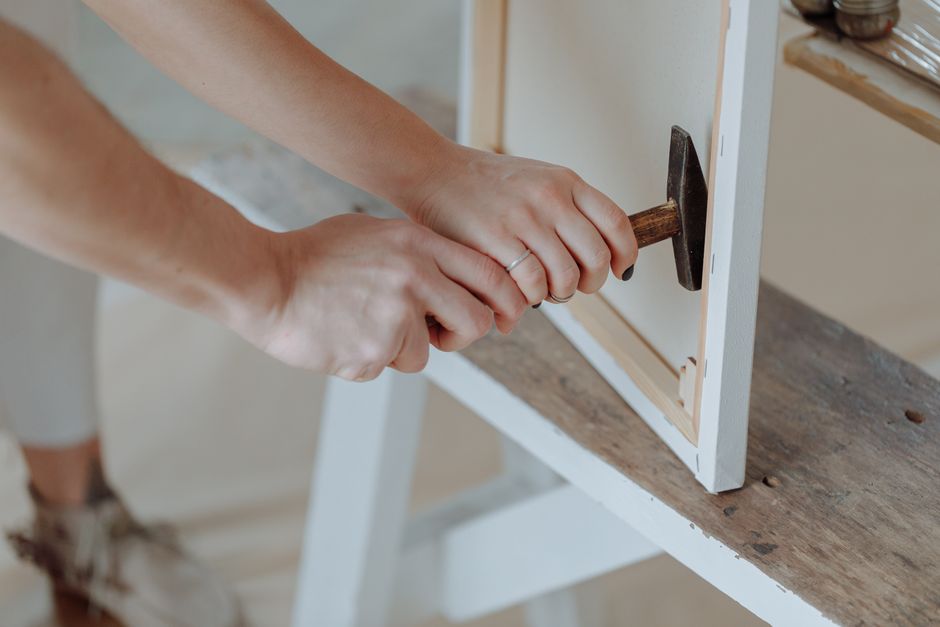
We can go with a classic look using mitered corners (45-degree angles) or a more rustic approach like a DIY live edge mirror. Popular choices include pine for budget builds or oak and walnut for high-end finishes.
- The Rabbet Cut: We need to rout a “lip” (rabbet) inside the frame. This is where the mirror and monitor will sit.
- The Depth: Make sure the frame is deep enough (usually 3-4 inches) to house the monitor, the Raspberry Pi, and all the messy cabling.
Ventilation and Light Leakage
Electronics generate heat. If we seal them in a wooden box without airflow, the Raspberry Pi will throttle, and the monitor might fail. We recommend drilling small ventilation holes at the bottom and top of the frame to allow for natural convection (heat rises!).
To prevent “light bleed” (where light from the monitor leaks out the sides of the frame), we can use black electrical tape or black foam weatherstripping around the edges of the monitor panel. This ensures that the only light you see is the actual data on the screen.
For mounting advice, refer to how-to-build-and-install-a-wall-mounted-smart-mirror.
Software Installation and MagicMirror² Configuration
This is where the “smart” part of the smart mirror comes in. We will be using the MagicMirror² framework, which is the industry standard for DIY builds.
Step 1: Prepare the Raspberry Pi OS
We recommend using the Raspberry Pi Imager tool.
- Choose Raspberry Pi OS (64-bit).
- Click the “cog” icon (Advanced Options).
- Set a hostname (like
magicmirror), enable SSH, and enter your Wi-Fi credentials. This allows for “headless” operation, meaning we can control the Pi from our main laptop without needing a separate keyboard and mouse for the Pi.
Step 2: Install MagicMirror²
Once the Pi is booted and connected to your network, open a terminal on your computer and SSH into the Pi (ssh pi@magicmirror.local). Run the following commands:
- Update the system:
sudo apt update && sudo apt upgrade -y - Install Node.js: Use the official setup script for the latest version.
- Clone the Repository:
git clone https://github.com/MichMich/MagicMirrorcd MagicMirrornpm install
This process can take 10-30 minutes depending on your internet speed, so grab a “cup of ambition” while you wait! For a deeper dive into the software side, check out setting-up-your-smart-mirror-a-complete-guide.
Step 3: Configuration (config.js)
The config/config.js file is the brain of your display. You can edit it using a text editor like nano:
nano config/config.js
Here, you can change the language, time format, and decide which modules appear where (e.g., top_left, bottom_right). If you’re new to this, we have a great beginners-guide-to-building-a-smart-mirror that explains the syntax.
Step 4: Auto-Starting with PM2
We don’t want to manually start the mirror every time the power flickers. PM2 is a process manager that handles this for us.
- Install PM2:
sudo npm install -g pm2 - Start MagicMirror:
pm2 start ~/MagicMirror/installers/pm2_MagicMirror.json - Save the setup:
pm2 save - Set it to run on boot:
pm2 startup
Now, your mirror is a true appliance! For more on the Pi setup, visit building-a-smart-mirror-with-raspberry-pi.
Advanced Customization and Smart Home Integration
Once the basics are running, it’s time to make the mirror truly yours.
Sensors and Power Saving
Keeping a monitor on 24/7 is a waste of electricity and can shorten the screen’s lifespan. We can add a PIR (Passive Infrared) Motion Sensor. When you walk into the room, the mirror wakes up; when you leave, it goes dark. This is a brilliant way to “do our bit” for energy conservation.
Smart Home with Home Assistant
If you use Home Assistant, you can integrate your mirror to show who is at the front door, the current temperature of the baby’s room, or if the garage door is open. Using the MMM-HomeAssistant-Items module, your mirror becomes a centralized dashboard for your entire home.
Adding Interactivity
While most mirrors are passive, you can go further:
- Touch Controls: By adding an IR touch frame over the mirror, you can interact with your calendar or control music. See creating-a-touch-screen-smart-mirror.
- Voice Control: Integrate a USB microphone and use modules like Google Assistant or Alexa to ask your mirror questions.
- Spotify: Display what’s currently playing with album art using the
MMM-NowPlayingOnSpotifymodule.
Troubleshooting and Budgeting Your Project
Every DIY project has its hiccups. Here is how to handle the most common ones.
Common Issues
- Black Screen: Usually a syntax error in your
config.js. Runnpm run config:checkin the MagicMirror folder to find the missing comma or bracket. - Wi-Fi Problems: The metal or foil on some two-way mirrors can act like a shield, blocking Wi-Fi signals. If your connection is spotty, try an external USB Wi-Fi antenna or use Ethernet.
- Dim Display: Check if your monitor has “Eco-mode” or “Auto-brightness” turned on and disable it. You want the brightness set to 100%.
For a deep dive into wiring, visit a-comprehensive-smart-mirror-wiring-guide.
Cost Breakdown
Building a smart mirror doesn’t have to break the bank. Here is a rough estimate for a mid-range build:
- Used Monitor: $40 – $60
- Raspberry Pi 4 Kit: $75 – $100
- Two-Way Acrylic (12×24): $30 – $50
- Lumber and Hardware: $40
- Total: ~$185 – $250
If you are on a tight budget, check out smart-mirror-project-for-tight-budgets or creating-a-budget-friendly-smart-mirror. You can even learn how-to-build-a-smart-mirror-without-raspberry-pi by using an old Android tablet!
Frequently Asked Questions about Mirror Builds
What is the total cost of a smart mirror project?
As mentioned, a standard build costs between $150 and $300. However, if you use a repurposed monitor and scrap wood, you could potentially finish a build for under $100. High-end builds with custom-cut glass and 4K displays can easily exceed $500.
Which Raspberry Pi model is best for beginners?
We recommend the Raspberry Pi 4 (4GB). It is widely supported, has plenty of tutorials, and provides a smooth experience. The Pi Zero is tempting due to its price, but it often struggles with the heavy Electron-based MagicMirror² software.
How do I prevent the monitor from overheating inside the frame?
Ventilation is key. Always include holes at the top and bottom of your enclosure. If you are using a high-brightness monitor that gets particularly hot, you might consider adding a small, silent 5V Noctua fan connected to the Pi’s GPIO pins.
Conclusion
At Foco Finanças, we believe that DIY technology projects are one of the most rewarding ways to personalize your living space. A smart mirror is more than just a gadget; it’s a functional piece of furniture that streamlines your morning routine. By following this mirror build guide, you’ve moved from science fiction into the role of a creator.
Whether you want a simple clock and weather display or a fully integrated Home Assistant dashboard, the possibilities are limited only by your imagination (and perhaps your wood-cutting skills!).
For more inspiration and technical deep-dives, explore our other resources:
Happy building, and may your reflection always be accompanied by useful data!
