
Why Configuring Your Smart Mirror WiFi Network Is the First Step That Matters
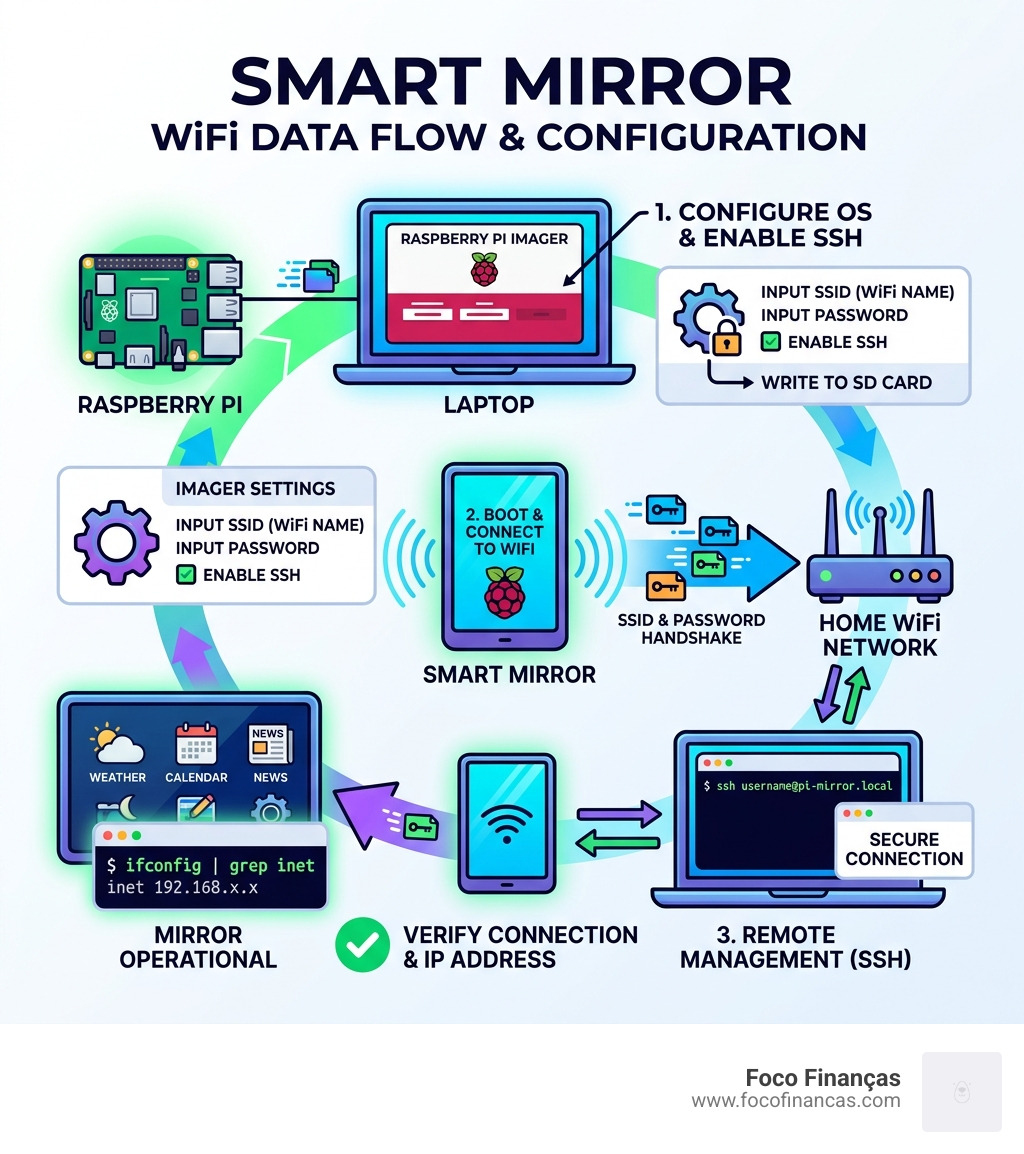
To configure smart mirror wifi network, follow these core steps:
- Flash your OS using Raspberry Pi Imager and enable “Configure wireless LAN” before writing to SD card
- Enter your SSID and password in the Imager settings
- Enable SSH in Imager so you can manage the device remotely
- Boot your Pi and connect via SSH using
ssh username@pi-mirror.local - Verify connection by running
ifconfigand checking for an IP address next toinet
Your smart mirror is only as useful as its internet connection. A mirror that can’t reach the network can’t show the weather, sync your calendar, or respond to voice commands. It’s just a mirror.
The good news? Getting connected is very doable — even without plugging in a keyboard or monitor. Most builders set this up before the mirror ever hits the wall, using a few simple tools on their laptop.
But things don’t always go smoothly. A common frustration: you assemble everything, mount the mirror, power it on — and realize you forgot to configure WiFi. Now it’s booted straight into kiosk mode and you can’t access any settings. Sound familiar?
That’s exactly why understanding the full WiFi setup process — from OS flashing to SSH access to editing config files — saves you a lot of headaches later.
Initial Setup: How to Configure Smart Mirror WiFi Network via Raspberry Pi Imager
When we start a DIY project, we often want to jump straight to the “magic” part—seeing our reflection surrounded by glowing widgets. However, the most successful builds begin at the software flashing stage. Using the Raspberry Pi Imager is the gold standard for a “headless” setup, meaning you can configure everything without ever needing to plug a keyboard or mouse into the mirror itself.
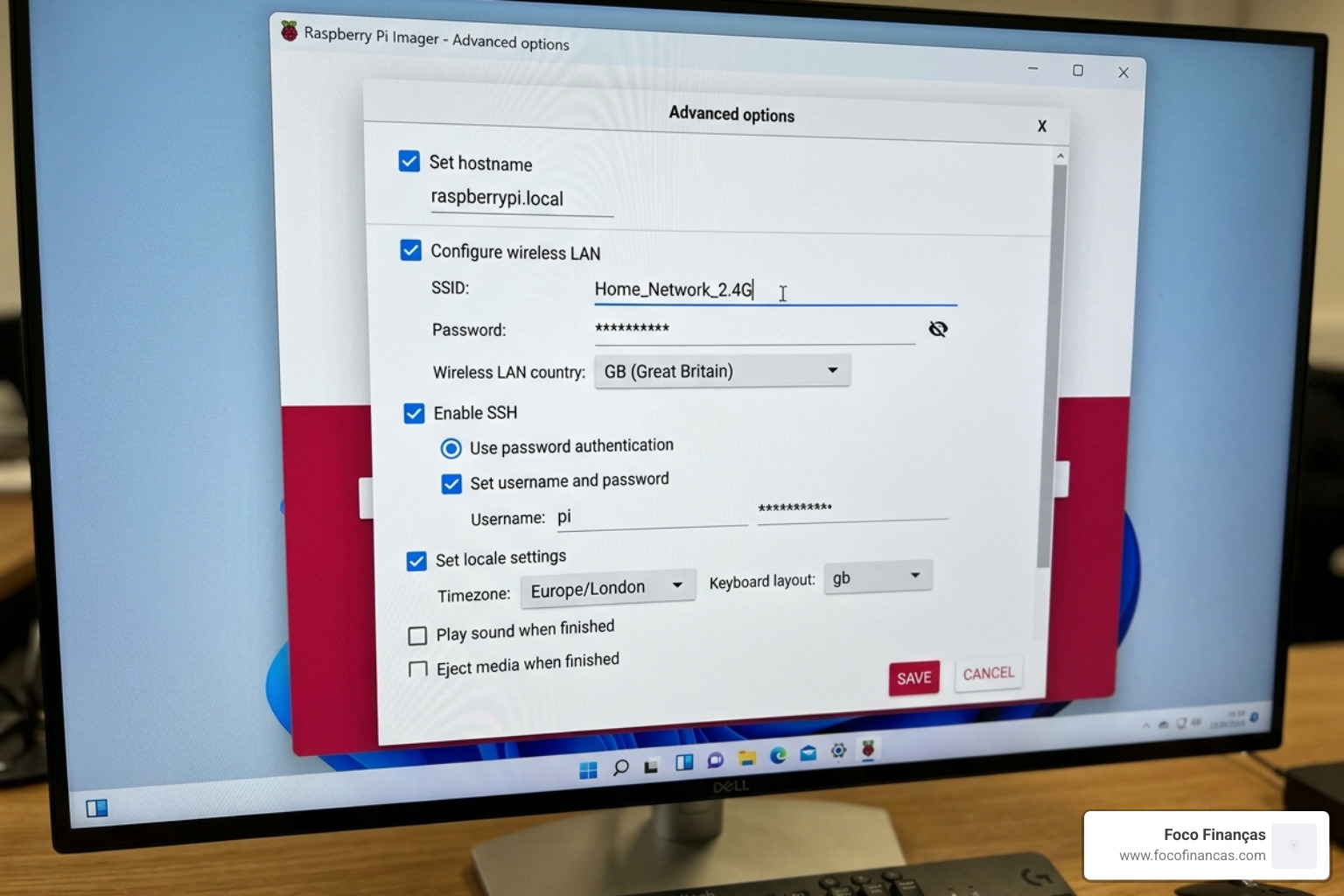
To configure smart mirror wifi network during the initial OS installation, follow these steps within the Raspberry Pi Imager:
- Select OS and Storage: Choose your preferred Raspbian version (usually the full desktop version is recommended for beginners to avoid dependency issues) and your SD card.
- Advanced Options: Click the gear icon (Settings). This is where the magic happens.
- Configure Wireless LAN: Check the box to enable wireless LAN. Enter your SSID (your WiFi name) and your password exactly as they appear on your router.
- Set Wireless LAN Country: Ensure this matches your location to avoid frequency band conflicts.
- Set Username and Password: Create a custom username and password. This is vital for security and for your future SSH connections.
By doing this, the Raspberry Pi will automatically attempt to join your home network the moment it boots for the first time. This eliminates the need for a physical interface during the most tedious part of the setup. For a deeper dive into the physical components, check out our guide to building a smart mirror with Raspberry Pi or follow this guide to building your own smart mirror.
Enabling SSH for Remote WiFi Management
One of the most powerful tools in our arsenal is SSH (Secure Shell). Enabling SSH allows us to “talk” to the mirror from our laptop using a terminal window. In the Raspberry Pi Imager settings, you should always check the “Enable SSH” box.
If you’ve already flashed your OS and forgot this step, don’t worry. You can enable it by placing a blank file named ssh (no file extension) into the root directory of the SD card using your computer. Once the mirror is running, SSH becomes your primary way to fix connectivity issues or update modules without taking the mirror off the wall. This flexibility is one of the many reasons why Raspberry Pi is perfect for your smart mirror.
Verifying Connection and Finding the IP Address
Once your mirror has booted, we need to make sure it actually made it onto the guest list of your home network. To do this, we need its IP address.
- Using the Terminal: If you have a keyboard attached, open the terminal and type
ifconfig. Look for thewlan0section; your IP address will be listed next toinet. - Using Your Router: Log into your router’s admin panel from any browser. Look for a “Device List” or “DHCP Client List.” Your mirror should appear there, often with the hostname you set in the Imager (e.g.,
pi-mirror). - Network Discovery Apps: Tools like Fing (for mobile) can scan your network and show you every connected device and its IP address in seconds.
Troubleshooting Connectivity: Why Your Mirror Won’t Connect
Even with the best planning, sometimes the “Signal in the Glass” just isn’t there. Connectivity issues are common, but they are usually caused by a few specific culprits.
One major factor is the hardware choice. While the Raspberry Pi 3A+ is beloved for its compact size (65mm × 56mm) and low power consumption (2.5W), its smaller antenna can sometimes struggle if it’s tucked deeply behind a thick two-way mirror or inside a metal frame.
| Issue Type | DIY MagicMirror (Raspberry Pi) | Commercial Smart Mirror (e.g., Byecold) |
|---|---|---|
| Common Cause | Incorrect wpa_supplicant.conf syntax |
Distance from router/Signal interference |
| Control Method | SSH or Terminal commands | Remote control or onboard buttons |
| Fix Difficulty | Moderate (requires coding/terminal) | Easy (usually a settings menu) |
| Reliability | Depends on power supply and SD card | Generally high, but closed ecosystem |
For more technical details on the initial Pi setup, refer to configuring the Raspberry Pi | Mirror.
Common WiFi Issues When You Configure Smart Mirror WiFi Network
If you’re staring at a blank weather widget, check these common errors:
- Frequency Bands: Older Raspberry Pi models only support 2.4GHz WiFi. If your router is set to “5GHz only,” the Pi won’t even see the network.
- Wireless Power Management: By default, Raspbian sometimes puts the WiFi chip to sleep to save power. This is great for a laptop, but terrible for a mirror that needs to stay updated. Disabling this in the network settings can solve many “dropping out” issues.
- Hidden SSIDs: If your WiFi name is hidden, the Pi won’t connect unless you specifically add
scan_ssid=1to your configuration files. - Power Supply: A weak power supply can cause the WiFi module to flake out even if the rest of the Pi seems to be working. Ensure you are using a high-quality 5V/3A power adapter. For more on the physical setup, see our smart mirror wiring guide.
Safety Precautions for Network Configuration
We must always prioritize safety when working with electronics. Since smart mirrors are often placed in bathrooms or near water sources, ensure all wiring is properly insulated and the power supply is kept away from moisture.
From a data perspective, never leave your default password as “raspberry.” As soon as you configure smart mirror wifi network, change your password. An internet-connected device with a default password is an open door for bad actors. For those looking to customize the software side securely, explore our smart mirror javascript setup guide.
Advanced Access: Managing WiFi in Kiosk Mode and SSH
The “MagicMirror” software typically runs in “Kiosk Mode,” which means it takes over the entire screen. This looks professional, but it hides the desktop where you would normally click the WiFi icon.
If you need to change settings while the mirror is running, you have two main options:
- Exiting Kiosk Mode: Plug in a keyboard and press
ALT+F4to close the browser. If the mirror is managed by a process manager like PM2, it might try to restart automatically. In that case, useCtrl+Alt+F1to jump to a terminal and typepm2 stop mmto give yourself some peace of mind while you work. - SSH Access: This is our preferred method. You don’t have to stop the mirror or plug in any peripherals. Just log in from your laptop and edit the files directly.
For a smooth first-run experience, consult the first time running smart mirror documentation.
Editing Configuration Files to Configure Smart Mirror WiFi Network
Sometimes the GUI just won’t cut it, and you need to get your hands dirty in the configuration files. The heart of your WiFi setup is a file called wpa_supplicant.conf.
To edit it via SSH, type:
sudo nano /etc/wpa_supplicant/wpa_supplicant.conf
Inside, you’ll see a block of code that looks like this:
network={
 ssid="Your_Network_Name"
 psk="Your_Password"
 key_mgmt=WPA-PSK
}
If you need to connect to a hidden network, add scan_ssid=1 inside that block. Once you’re done, press Ctrl+X, then Y, then Enter to save. Restart your wireless interface with sudo ifdown wlan0 and sudo ifup wlan0 to apply the changes. This level of control is explained further in our MagicMirror coding guide.
Connecting to Remote Configuration Tools
Some smart mirror platforms, like the “smart-mirror” project, offer a web-based Remote Configuration Tool. On the first boot, these mirrors often display a QR code. When you scan this with your phone (provided you are on the same network), it opens a beautiful interface where you can configure smart mirror wifi network settings, add API keys for weather, and customize your layout without typing a single line of code.
If you’ve already passed the initial setup, you can often trigger this link again by using a voice command like “Show Remote Link.” This is a fantastic way to manage your mirror from the comfort of your couch. Learn more at the configure the smart-mirror documentation.
Network Protocols for Smart Mirror Features
A smart mirror does more than just show text; it often acts as a hub for your digital life. This requires specific network ports to be open so different services can talk to each other.
If you are using advanced features like screen sharing or remote control, your network needs to allow certain protocols:
- AirPlay & Google Cast: These allow you to “cast” your phone screen to the mirror. They rely on Bonjour (mDNS) services to find the mirror on the network.
- TCP/UDP Ports: Standard web traffic uses Port 80 and 443. However, screen sharing might require opening a range of ports (like 7000-7100 for AirPlay).
- FQDNs: Some commercial mirrors need to reach specific web addresses (Fully Qualified Domain Names) like
smartmirror.linkto function correctly.
For IT admins or those with complex home networks, configuring the network for screen sharing is a vital read.
Port Requirements for Weather and Remote Control
Most modules, such as those for weather or news feeds, simply need outgoing access to the internet via Port 443 (HTTPS). However, if you install a “Remote Control” module that lets you change the mirror’s display from your phone, you will usually need to access the mirror on Port 8080.
When we install smart mirror modules, we always check if they require a specific port to be opened in the Raspberry Pi’s firewall (ufw). Without this, the module might be running perfectly, but your phone won’t be able to “see” it.
Frequently Asked Questions about Smart Mirror WiFi
How do I exit kiosk mode to change WiFi settings?
As mentioned earlier, the quickest way is to use a physical keyboard. Press ALT+F4 to close the active window. If the screen stays black, press Ctrl+Alt+T to open a new terminal. If you are using PM2 to manage your mirror (which we highly recommend for 99.9% uptime), you should run pm2 stop all to prevent the mirror from immediately popping back up.
Can I set up a smart mirror on a hidden WiFi network?
Yes! You won’t be able to do this easily through the standard GUI, but you can do it via the wpa_supplicant.conf file. Just ensure you include the line scan_ssid=1 within your network configuration block. This tells the Raspberry Pi to actively probe for your network name even if it isn’t broadcasting.
Why does my smart mirror lose connection after a reboot?
This is often a timing issue. Sometimes the MagicMirror software tries to start before the WiFi has finished connecting. To fix this, you can configure your Raspberry Pi to “Wait for Network on Boot” in the raspi-config menu. Additionally, ensure your power supply is stable; a momentary dip in voltage during the boot process can cause the WiFi chip to fail while the rest of the system stays on.
Conclusion
At Foco Finanças, we believe that technology should serve you, not the other way around. Successfully learning how to configure smart mirror wifi network is the bridge between a simple piece of glass and a truly intelligent home assistant. Whether you are using a Raspberry Pi 3A+ for a slim DIY build or setting up a commercial display, the principles of network stability remain the same.
By mastering SSH, understanding port requirements, and knowing how to navigate kiosk mode, you ensure your mirror remains a reliable part of your morning routine for years to come. Ready to take the next step in your build? Check out our complete guide to setting up your smart mirror and start your smart mirror journey today. Happy building!
