
What You Need to Know Before Starting Your Raspberry Pi Mirror Tutorial
If you want the quick version, here’s how to build a Raspberry Pi Magic Mirror:
- Buy the hardware – Raspberry Pi 4, a monitor, a two-way mirror, and a microSD card (16GB+)
- Flash Raspberry Pi OS to the microSD card using Raspberry Pi Imager
- Install MagicMirror² by running the one-line install script via terminal
- Edit
config.jsto configure your modules (clock, weather, calendar) - Set up PM2 so the mirror auto-starts on boot
- Assemble the frame with the monitor mounted behind the two-way mirror
- Mount it on the wall and enjoy your smart mirror
A raspberry pi mirror tutorial is one of the most satisfying DIY tech projects you can do at home. The result is a real, working smart mirror that shows the time, weather, your calendar, and more — right in your reflection.
It looks like something out of a sci-fi movie. But it’s surprisingly buildable, even for beginners.
The project combines two things: a small Raspberry Pi computer running open-source software called MagicMirror², and a two-way mirror placed in front of a monitor. Light from the screen passes through the mirror, making your display visible while the rest of the surface still reflects like a normal mirror.
MagicMirror² has earned serious credibility in the maker community — it was voted #1 in the MagPi Top 50, the Raspberry Pi community’s top software list. Over 284,000 people have read the complete setup tutorial on the MagicMirror forums alone.
The biggest hurdles people hit are usually config file errors, heat management, and sourcing the right mirror material. This guide covers all of it, step by step.

Essential Hardware for Your Raspberry Pi Mirror Tutorial
Building a smart mirror is like baking a cake: if you don’t have the right ingredients, the result will be a bit of a mess. For our raspberry pi mirror tutorial, we need a mix of computing power and physical materials.
The Core Components
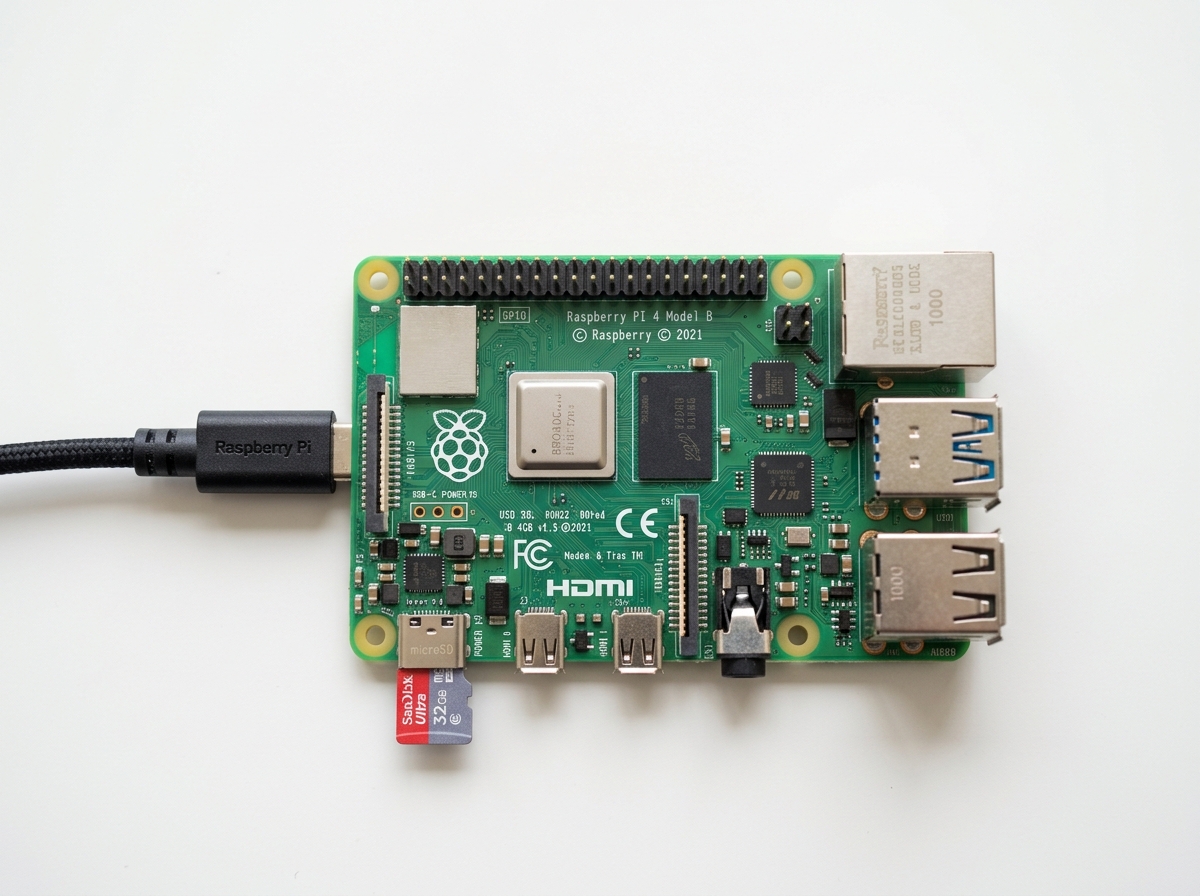
First and foremost, we need the “brain.” While several models work, the Raspberry Pi 4 is our top recommendation. It has the quad-core power (Cortex-A72 @ 1.5GHz) and 2GB to 4GB of RAM needed to run the Electron-based MagicMirror² software smoothly.
You will also need:
- Power Supply: Don’t skimp here. We recommend an official 5V 3A USB-C power supply. Many “glitches” in smart mirrors are actually caused by undervoltage issues.
- MicroSD Card: At least 16GB, Class 10 or better. The entire OS runs off this card, so speed matters.
- HDMI Cable: Depending on your Pi model, you’ll likely need a Micro-HDMI to HDMI cable.
- Monitor: A screen with a slim profile and high brightness (at least 300 nits) is ideal.
For a deeper dive into why we choose this specific hardware, check out Why Raspberry Pi is Perfect for Your Smart Mirror.
Two-Way Mirror Comparison
The mirror is what makes the magic happen. You have two main paths: acrylic or glass.
| Feature | Acrylic Two-Way Mirror | Glass Two-Way Mirror |
|---|---|---|
| Weight | Lightweight, easy to mount | Heavy, requires sturdy frame |
| Durability | Scratches easily | Scratch-resistant |
| Clarity | Can have “funhouse” warping | Perfect, flat reflection |
| Cost | Affordable ($40-$80) | Expensive ($200+) |
| Ease of DIY | Can be cut with basic tools | Requires professional cutting |
Choosing the Best Raspberry Pi Model
While the Pi 4 is the heavyweight champion, other models have their place:
- Raspberry Pi 3A+: This is the secret weapon for a super-slim smart mirror. It lacks the bulk of the Ethernet port, making it much thinner than the Pi 4 or 3B+.
- Raspberry Pi Zero W: It is possible to use a Zero, but be warned: it uses an older ARMv6 architecture. You’ll need to manually install older versions of Node.js (v10.23.0 is a known stable version for this) and run Chromium in kiosk mode rather than the default MagicMirror browser.
Sourcing the Two-Way Mirror
If you are on a tight budget, you can buy a standard piece of glass or clear acrylic and apply reflective mirror film. It’s a bit tricky to get the bubbles out, but it can bring your project cost down significantly. If you want the absolute best look, “Dielectric” or “Smart Mirror Glass” is the way to go, though it costs more. For more details on sourcing, see The Ultimate Guide to Building a Two-Way Smart Mirror.
Software Setup and MagicMirror² Installation
Now that we have our hardware, it’s time to bring the “Magic” to the “Mirror.” We’ll start by preparing the software environment.
Preparing the MicroSD Card and Headless Setup
We recommend using the Raspberry Pi Imager tool.
- Insert your microSD card into your computer.
- Select Raspberry Pi OS (64-bit). If you want to save resources, “OS Lite” is great, but “Desktop” is easier for beginners.
- Before flashing, click the gear icon (Advanced Options). Here, you can enable SSH, set a username/password, and configure your Wi-Fi. This allows for a “headless” setup, meaning you can control the Pi from your laptop without needing a separate keyboard and mouse for the Pi.
Step-by-Step Raspberry Pi Mirror Tutorial Software Install
Once your Pi is powered up and connected to your network, open a terminal on your computer (Command Prompt on Windows or Terminal on Mac) and SSH into your Pi:
ssh username@raspberrypi.local
Now, let’s install the MagicMirror² software. While you can do this manually by cloning the Git repository, there is a fantastic community-maintained script that handles the heavy lifting. Run this command:
bash -c "$(curl -sL https://raw.githubusercontent.com/MichMich/MagicMirror/master/installers/raspberry.sh)"
This script will install Node.js, npm, and all necessary dependencies. During the install, it will ask if you want to use PM2 to start the mirror automatically. Say Yes! PM2 is a process manager that ensures your mirror stays running even if the app crashes or the power goes out.
For a more granular look at the installation process, visit Setting Up Your Smart Mirror: A Complete Guide.
Customizing Modules and Advanced Configuration
The beauty of MagicMirror² is that everything is a “module.” By default, you get a clock, a calendar, weather, and “compliments.” But you can add hundreds of third-party modules, from Spotify players to traffic maps.
Configuring Core Modules: Clock, Weather, and Calendar
All your changes happen in one file: ~/MagicMirror/config/config.js.
Before you start editing, always make a backup:
cp config.js config.js.backup
Inside the config.js file, you’ll see a modules array. Here is how to handle the big three:
- Clock: You can change the
timeFormat(12 or 24) anddisplaySeconds. - Weather: You’ll need a free API key from OpenWeatherMap. Once you have it, paste the key and your
locationIDinto the weather module config. - Calendar: You can link your Google Calendar by finding your “Secret Address in iCal format” in your Google Calendar settings. Paste that URL into the calendar module’s
urlfield.
If you find the default “compliments” a bit cheesy (or “too sexy” for a family setting, as some users have noted!), you can easily edit the compliments.js file to include your own custom phrases or jokes. For more customization tips, check out DIY Smart Mirror: A Step-by-Step Guide.
Automating Your Raspberry Pi Mirror Tutorial with PM2
We want our mirror to feel like an appliance, not a computer. This means it should turn on the moment it’s plugged in.
If the installer didn’t set up PM2 for you, you can do it manually:
- Install PM2:
sudo npm install -g pm2 - Make it start on boot:
pm2 startup(then run the command it gives you). - Create a start script: Create a file named
mm.shin your home directory with the contentscd ~/MagicMirror && npm start. - Start it:
pm2 start mm.sh - Save the state:
pm2 save
Now, your mirror is resilient. If you want to dive deeper into these automated settings, see our Beginner’s Guide to Building a Smart Mirror.
Physical Assembly and Frame Construction
This is where the “DIY” gets real. You need to build a home for your electronics.
Disassembling the Monitor and Mounting Components
Most monitors have a plastic “bezel” (the outer frame). To keep your mirror slim, you should remove this.
- Pro Tip: Use a prying tool or a flathead screwdriver carefully. Some bezels are glued, so a hairdryer can help loosen the adhesive.
- Once the bezel is off, you’ll have the bare LCD panel and a controller board.
- Use VHB (Very High Bond) tape or heavy-duty duct tape to secure the Raspberry Pi and the controller board to the back of the monitor.
Building the Enclosure and Heat Management
A popular choice for the frame is a shadow box from a craft store, which usually has the 2-3 inch depth required to fit the monitor and Pi. If you’re building from scratch, use 1×4 pine lumber.
Crucial Step: Ventilation. The Raspberry Pi 4 runs hot, especially when rendering the MagicMirror interface.
- Drill ventilation holes at the top and bottom of your frame to allow for natural convection.
- Use a heatsink case for the Pi.
- If you find the mirror is getting warm to the touch, consider adding a small 5V Noctua fan connected to the Pi’s GPIO pins.
To ensure the mirror effect is perfect, cover any gaps between the monitor and the frame with black vinyl or black construction paper. This prevents light leakage, ensuring that only the text from your modules “floats” on the mirror surface. For detailed mounting instructions, refer to How to Build and Install a Wall-Mounted Smart Mirror.
Troubleshooting and Performance Optimization
Even the best-laid plans can hit a snag. Here are the most common issues we see in a raspberry pi mirror tutorial:
- The Black Screen: If your screen is black but the Pi is on, it’s usually a syntax error in
config.js. A missing comma or an unclosed bracket will crash the whole app. Use an online “JSON validator” to check your code. - WiFi Power Saving: By default, the Pi might turn off its WiFi to save power, which stops your weather and news from updating. Disable this by adding
wireless-power offto your network configuration. - Screen Blanking: Raspbian will try to turn off the screen after 10 minutes of inactivity. You’ll need to disable “Screen Blanking” in the
raspi-configmenu or by editing theautostartfile. - Performance Lag: If the animations look choppy, try using Raspberry Pi OS Lite. It doesn’t load the desktop environment, freeing up RAM for the MagicMirror software.
For a comprehensive troubleshooting guide, visit Building a Smart Mirror with Raspberry Pi.
Frequently Asked Questions about Magic Mirrors
Which Raspberry Pi model is best for a Magic Mirror?
For 90% of users, the Raspberry Pi 4 (2GB RAM) is the best choice. It offers the perfect balance of price and performance. If you are building an ultra-small desk mirror, the Pi Zero W is okay, but it requires much more technical “fiddling” to get working.
How do I fix a black screen on my Magic Mirror?
Check your config.js file first! If you see a message saying “Please create a config file,” it means you haven’t renamed config.js.sample to config.js. If the screen is just completely dark, check your HDMI connection and ensure your power supply is providing enough juice.
Can I build a smart mirror without a Raspberry Pi?
Yes! You can use an old Android tablet or even a specialized controller board. However, you lose the massive library of MagicMirror² modules. For more on this, see How to Build a Smart Mirror Without Raspberry Pi.
Conclusion
Building a smart mirror is more than just a tech project; it’s a way to upgrade your daily routine. From seeing your morning schedule while brushing your teeth to checking the weather before you head out, the utility is real.
At Foco Finanças, we love projects that combine creativity with practical technology. Whether you choose a high-end glass mirror or a budget-friendly acrylic build, the satisfaction of seeing your first module “float” on the glass is unbeatable.
Once you’ve mastered the basics of this raspberry pi mirror tutorial, the sky is the limit. You can add PIR motion sensors to turn the screen on only when you’re in the room, or even integrate voice assistants like Alexa.
Ready to start your next maker adventure? Explore more hardware tutorials and let us know how your build goes!
