
What Is a Magic Mirror and Why You Should Build One
Magic mirror tutorial searches usually come from one place: you’ve seen a smart mirror online and want to build your own. Here’s the short version of how it works:
Quick-start overview:
- Mount a monitor behind a two-way mirror
- Connect a Raspberry Pi to the monitor
- Install MagicMirror² software on the Pi
- Configure modules (clock, weather, calendar, news) in one config file
- Mount everything in a frame and hang it on your wall
That’s the whole project in five steps. The sections below walk through each one in detail.
Smart mirrors have been on makers’ wish lists for years. The appeal is obvious — a mirror that shows your calendar, the weather, and today’s news while you brush your teeth in the morning sounds like something out of a sci-fi film. But it’s surprisingly buildable with off-the-shelf parts.
The software that makes this possible is MagicMirror², a free, open-source project that runs on a Raspberry Pi. It was voted number one in The MagPi magazine’s Top 50 projects, and its community has built over 100 third-party modules to extend what your mirror can display.
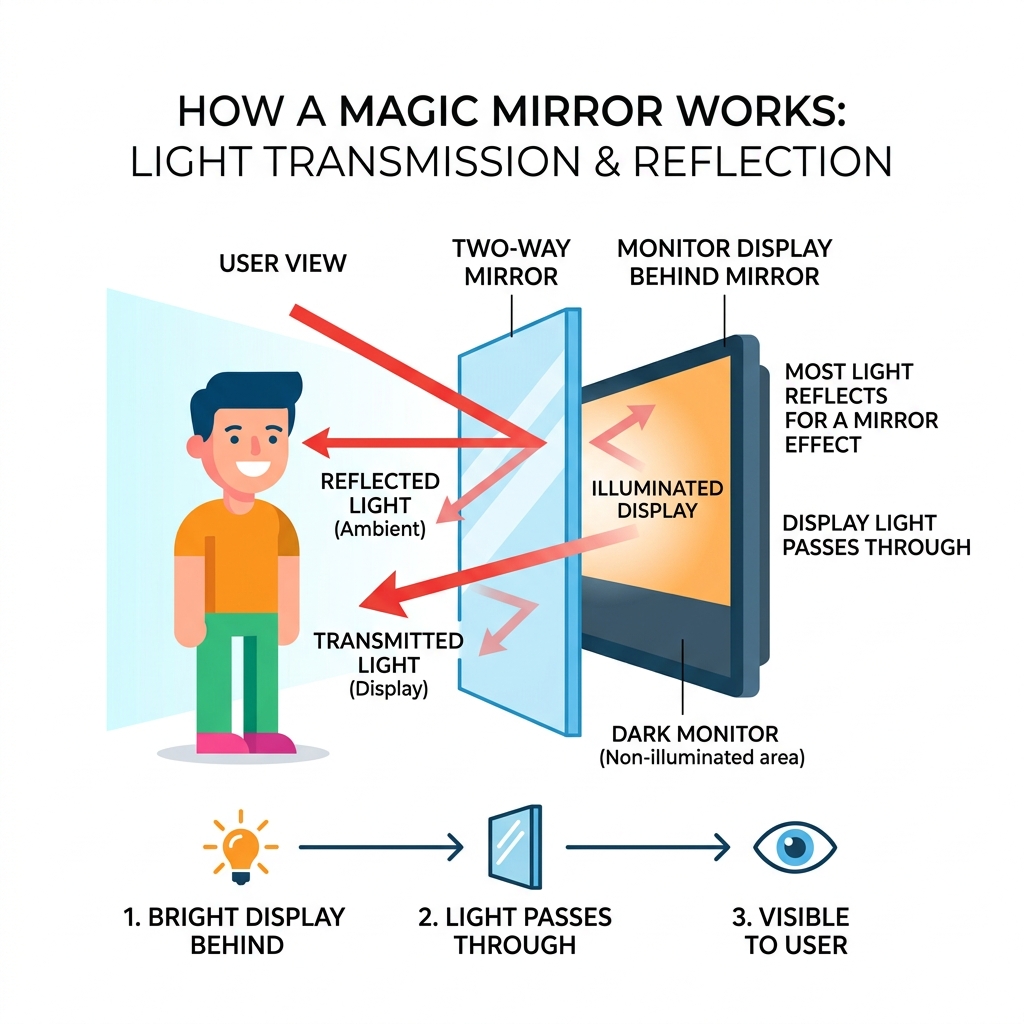
The core concept is simple physics. A two-way mirror lets a small percentage of light pass through while reflecting the rest. When a bright screen sits behind it in a dark enclosure, the display shines through clearly — while the mirror effect stays intact everywhere else.
The tricky part isn’t the concept. It’s knowing which hardware to buy, which software steps to follow, and how to avoid the common mistakes that cause black screens and crashes. This guide covers all of it.
Essential Hardware for Your Magic Mirror Tutorial Project
Before we dive into the code, we need to gather our physical components. Building a smart mirror is essentially a sandwich: a frame, a two-way mirror, a monitor, and a tiny computer to run the show.

The heart of the project is the Raspberry Pi. While older models like the Pi 3 can work, we generally recommend the Raspberry Pi 4 or the newer Raspberry Pi 5 for the smoothest experience. MagicMirror² is an Electron-based application, which means it’s essentially a web browser running full-screen. This requires a decent amount of RAM and processing power to handle multiple modules without lagging.
| Feature | Raspberry Pi 4 | Raspberry Pi 5 |
|---|---|---|
| Processor | Quad-core Cortex-A72 @ 1.5GHz | Quad-core Cortex-A76 @ 2.4GHz |
| RAM Options | 2GB, 4GB, 8GB | 4GB, 8GB |
| Power Needs | 5V 3A USB-C | 5V 5A USB-C (Recommended) |
| Performance | Solid for standard modules | Overkill, but ultra-smooth |
Aside from the Pi, you will need:
- A High-Brightness Monitor: Look for at least 300 nits (cd/m2). The higher the contrast, the better the text will “pop” through the mirror.
- Power Supply: Use a genuine 5V 3A supply to avoid undervoltage warnings.
- MicroSD Card: A Class 10 card with at least 16GB is essential for reliability.
- HDMI Adapter/Cable: A 90-degree cable is a lifesaver for keeping the build slim.
- Cooling: Heatsinks or a small fan are necessary, especially if the Pi is enclosed in a tight wooden frame.
Choosing the Best Raspberry Pi and Monitor
If you are aiming for a “super-slim” build, the Raspberry Pi 3 Model A+ is a fantastic choice because of its lower profile, though it has less RAM than the Pi 4. For most users, a standard Pi 4 with 2GB or 4GB of RAM is the “sweet spot.”
When it comes to the monitor, size matters. Most builders find that 16 to 24 inches is the ideal range. We recommend sourcing an IPS panel for better viewing angles. If you’re using an old monitor, you’ll likely need to perform a “bezel-ectomy”—carefully prying off the plastic outer frame to reveal the slim internal display. This allows the screen to sit flush against the mirror, preventing light bleed.
Sourcing Your Two-Way Mirror and Frame
The “magic” depends entirely on the mirror. You have two main choices:
- Acrylic Two-Way Mirror: Cheaper ($20-$50), lightweight, and easy to cut. However, it can scratch easily and may have a slight “funhouse” warp if not perfectly flat.
- Glass Two-Way Mirror: The professional choice ($100-$150). It offers superior optical clarity and durability but is heavy and harder to source.
We suggest a reflectivity-to-transmissivity ratio of roughly 70/30 or 50/50. For the frame, many beginners start with an IKEA Ribba frame because of its depth, which provides enough room to hide the electronics. For a more permanent look, a custom wood frame with black foam tape around the monitor bezel will ensure no light leaks from the sides, keeping the “floating text” illusion perfect.
Step-by-Step Software Installation and Configuration
Now that the hardware is ready, let’s get the brains of the operation running. We recommend using Raspberry Pi OS (64-bit Lite) for a lean system, though the Desktop version is easier for beginners who want to see what they are doing on a screen immediately.
Start by using the Raspberry Pi Imager to flash your OS onto the microSD card. Pro tip: Use the “Advanced Options” (the gear icon) to pre-configure your Wi-Fi and enable SSH. This allows for a “headless” setup, meaning you can control the Pi from your main laptop without needing an extra keyboard.
Once you boot up and log in via terminal, ensure your system is up to date:
sudo apt update && sudo apt upgrade -y
You will also need to install Node.js, as MagicMirror² is built on it. You can follow the Introduction | MagicMirror² Docs for the most current version requirements. For those looking for deeper coding insights, check out our magic-mirror-coding-guide.
Installing MagicMirror² on Raspberry Pi
While there are automated scripts available, we prefer the manual installation for better long-term control. In your terminal, run the following commands:
git clone https://github.com/MichMich/MagicMirrorcd MagicMirrornpm install
This process can take 10–20 minutes depending on your Pi model. Once finished, you can test it by running npm start. If you are working via SSH, you might need to use a remote desktop or wait until the monitor is plugged in to see the interface.
If your monitor is mounted vertically, you’ll need to rotate the screen. On newer versions of Raspberry Pi OS (Bookworm), this is handled via the Screen Configuration utility in the desktop menu or by editing the wayfire.ini file.
Configuring the config.js File for Basic Modules
The configuration is where the fun happens. All your settings live in ~/MagicMirror/config/config.js. Start by copying the sample file:
cp config/config.js.sample config/config.js
Open it with a text editor like Nano: nano config/config.js. Here, you can define which modules appear and where they sit on the screen (topleft, bottomright, etc.).
Essential Modules to Include:
- Clock: Shows time and date.
- Calendar: Link your Google Calendar using a private iCal URL.
- Weather: Requires a free API key from OpenWeatherMap.
- News Feed: Add your favorite RSS feeds (like BBC or NYT).
- Compliments: Displays fun phrases like “Looking sharp!”
For a detailed walkthrough on making your mirror look beautiful, see our guide on how to customize-magicmirror-ui.
Auto-starting with PM2 and Troubleshooting
You don’t want to manually start your mirror every time the power flickers. We use PM2, a process manager, to handle auto-booting.
Install PM2 with: sudo npm install -g pm2
Then, create a small script (usually named mm.sh) that triggers npm start inside the MagicMirror directory. Use the command pm2 start mm.sh and then pm2 save to ensure it remembers to launch on boot.
Common Troubleshooting Tips:
- Black Screen: Often caused by a syntax error in
config.js. Usenpm run config:checkto find missing commas or brackets. - Modules Not Loading: Check your internet connection or verify your API keys for weather and calendar modules.
- Overheating: If the mirror crashes after an hour, check the airflow in your frame.
Building the Physical Enclosure and Assembly
This is the “DIY” part of our magic mirror tutorial. You need to create a “sandwich” that holds everything securely while allowing for heat dissipation.
A “shadow box” style frame is ideal because it provides depth. When mounting the monitor, we recommend using VHB (Very High Bond) tape or specialized brackets. Avoid using metal screws directly against the screen; nylon fasteners are much safer and won’t crack the acrylic or glass if tightened too much.
To prevent light from the Pi’s status LEDs or the back of the monitor from leaking through the mirror, we suggest using a black cardstock border or “mask” around the active display area. This ensures that the only light hitting the mirror comes from the pixels on the screen.
Assembling the Mirror Sandwich
Before the final seal, cleanliness is godliness. Any fingerprint or speck of dust trapped between the monitor and the mirror will be visible forever (or until you take the whole thing apart).
- Clean the mirror and monitor thoroughly with microfiber.
- Place the mirror into the frame.
- Lay the monitor on top, ensuring it is perfectly centered.
- Secure the monitor with a backboard or cleats.
- Mount the Raspberry Pi to the back of the monitor (many use heavy-duty Velcro or VHB tape).
- Organize your cables! Use zip ties to prevent cables from dangling, which can put stress on the ports.
For safety, ensure your power cables are rated for the load and that the frame is securely mounted to the wall using Z-clips or heavy-duty anchors. A finished mirror can weigh between 8kg and 12kg, so don’t rely on a simple nail!
Customizing Your Display with Advanced Modules
Once the basics are running, you can start adding “smart” features. The community has created hundreds of modules that go far beyond a simple clock.
To manage these easily, we recommend mmpm (Magic Mirror Package Manager). It’s a command-line tool that lets you search for and install modules without manually cloning GitHub repositories every time.
If you want to dive deeper into advanced UI changes, we have several resources available:
Enhancing Your Magic Mirror Tutorial with Third-Party Modules
Want your mirror to do more? Here are some popular advanced integrations:
- PIR Motion Sensor: Use a small infrared sensor to turn the monitor off when no one is in the room. This saves power and extends the life of your screen.
- Spotify Integration: Show what’s currently playing on your home speakers with album art.
- Home Assistant: Display the status of your smart lights, locks, and thermostats directly on the mirror.
- Facial Recognition: Use a Raspberry Pi Camera module to show different modules depending on who is standing in front of the mirror (e.g., “His” vs. “Her” calendars).
- Voice Control: Integrate Alexa or Google Assistant to turn your mirror into a fully interactive hub.
Frequently Asked Questions about Magic Mirrors
What is the total estimated cost and time to complete the project?
A typical build costs between $150 and $300. If you already have an old monitor and a Raspberry Pi, you might only spend $50 on the mirror and wood. Time-wise, expect to spend about 5 to 10 hours. The software setup takes about 2 hours, while the physical construction and “fiddling” with the CSS layout usually take the most time.
How do I fix common issues like black screens or crashes?
Most crashes are hardware-related. If your Pi is underpowered (indicated by a small lightning bolt icon on the screen), it will throttle the CPU and eventually crash. Always use a high-quality power supply. If you see a black screen after a software update, it’s likely that a third-party module is no longer compatible with the latest version of Node.js. Check the logs using pm2 logs mm.
Which mirror material is better: acrylic or glass?
For your first project, acrylic is better. It’s forgiving, easy to cut with a plastic cutter, and much cheaper if you make a mistake. However, for a “living room quality” piece, glass is the winner. It provides a much crisper reflection and won’t scratch when you clean it.
Conclusion
Building a smart mirror is one of the most rewarding DIY projects you can undertake. It combines woodworking, electronics, and coding into a single functional piece of home decor. Whether you want a simple morning dashboard or a high-tech hub with facial recognition, the MagicMirror² platform provides the perfect foundation.
If you hit a snag, the community is your best resource. The official MagicMirror² forums and GitHub pages are filled with makers who have solved almost every problem imaginable. We hope this magic mirror tutorial has given you the confidence to start your build!
For more inspiration and guides on smart home projects, stay tuned to Foco Finanças. Happy making!
