
What a Smart Mirror Weather Widget Can Do for Your Morning Routine
A smart mirror weather widget is a real-time weather display built into a two-way mirror — showing current conditions, forecasts, and more while you get ready in the morning. Here’s a quick overview of how it works and what you need:
Quick Answer:
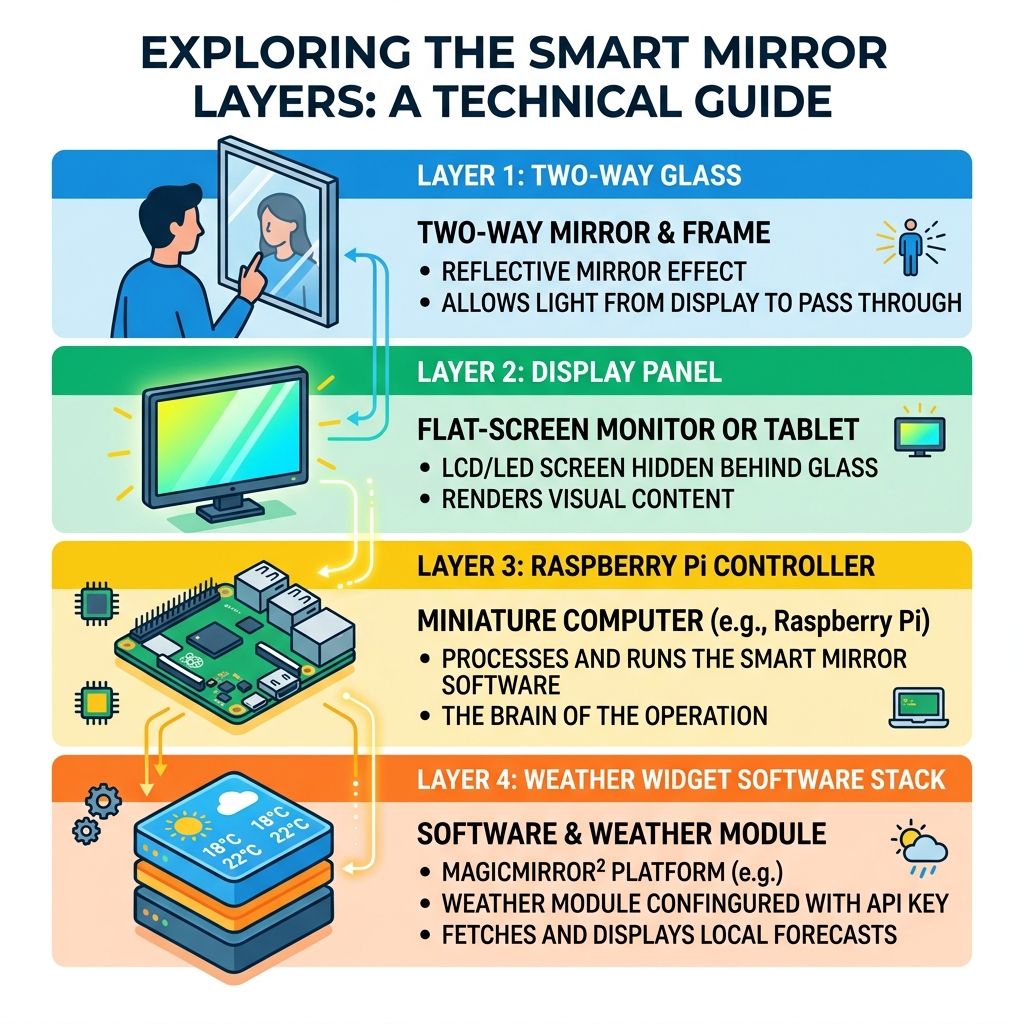
- A smart mirror combines a regular display (monitor or tablet) with two-way mirror glass
- Weather data is pulled from APIs like OpenWeatherMap, AccuWeather, or SMHI
- Software like MagicMirror², Senses, or DAKboard controls what appears on screen
- DIY builds can cost under $100; commercial units start around $1,800
- Setup requires choosing a platform, getting an API key, and editing a config file
Imagine brushing your teeth while your mirror shows today’s forecast, tonight’s low, and whether you need an umbrella. That’s exactly what a smart mirror weather widget delivers — useful information, zero extra effort.
Smart mirrors have been around for years, but modern slim displays and open-source software like MagicMirror² have made them far more accessible. You no longer need advanced electrical skills or a big budget to build one.
Whether you want a polished DIY project or a plug-and-play commercial unit, this guide walks you through everything — from picking your platform to getting live weather on your wall.
Choosing the Right Smart Mirror Weather Widget Platform
When we start planning a smart mirror, the first question is always: “What software should I use?” The software is the brain of your mirror. It determines how your smart mirror weather widget looks, how often it updates, and how much control you have over the data.
There are three heavy hitters in this space, and choosing between them depends on whether you enjoy tinkering with code or prefer a “set it and forget it” experience. For a deeper dive into the technical side of things, check out our guide on the smart-mirror-weather-module.

| Feature | MagicMirror² | Senses | DAKboard |
|---|---|---|---|
| Cost | Free (Open Source) | Free/Paid Tiers | Free/Paid Subscription |
| Ease of Use | Moderate (Requires Terminal) | High (App-based) | High (Web-based) |
| Customization | Unlimited | High | Moderate (Template-based) |
| Hardware | Raspberry Pi / PC | Raspberry Pi / Android | Raspberry Pi / Tablet / PC |
Popular Software for a Smart Mirror Weather Widget
MagicMirror² is the gold standard for DIY enthusiasts. It is an open-source platform built on Node.js that runs in “kiosk mode,” meaning the interface takes over the entire screen. Because it is community-driven, there are hundreds of modules available, ranging from basic weather to stock tickers and even facial recognition.
Senses offers a more streamlined, user-friendly approach. Their Weather | Senses – Smart Mirror documentation highlights how easily you can toggle features like wind speed, sunrise times, and location descriptions directly through an app interface rather than editing text files.
DAKboard is often favored by those who want a beautiful, wall-mounted calendar that happens to show the weather. It is highly visual and managed through a web browser, making it a great choice for families.
Commercial vs DIY Software Solutions
If you aren’t interested in mounting monitors and installing Linux, commercial solutions like those offered by Weather and Clock Integration – Mirror Image provide a professional finish. These often come with cloud-based technology that allows for simple adjustments without ever touching a line of code.
However, the “DIY vs. Commercial” debate usually comes down to the wallet. A commercial 32″ HD framed model can start as high as $1,800. In contrast, a DIY build using an old Android tablet and a piece of Vanity Vision glass can cost under $100. We love the DIY route because it allows us to build a smart-mirror-with-weather-display that is exactly the size and style we want.
Essential Weather APIs and Data Sources
To get live data onto your mirror, your software needs to talk to a weather provider via an API (Application Programming Interface). Think of the API as a waiter: your mirror asks for the temperature, and the API goes to the kitchen (the weather server) to bring it back to you.
Configuring Your Smart Mirror Weather Widget API
Most weather providers offer a “Free Tier,” but they come with strings attached. For example, the GitHub – maxbethge/MMM-AccuWeatherForecastDeluxe module is fantastic for detailed forecasts, but the AccuWeather free tier currently limits users to 50 API requests per day. If your mirror updates every 10 minutes, you’ll hit that limit quickly!
OpenWeatherMap is perhaps the most common choice. Its free tier allows for a 5-day forecast, which is usually plenty for a morning routine. When setting this up, you’ll need to sign up for an account, generate an API key, and paste that key into your mirror’s configuration.
Regional Data Accuracy and Providers
Accuracy matters. If you live in Sweden, you might prefer the GitHub – fbacker/MMM-Weather-SMHI module, which uses data from the Swedish Meteorological and Hydrological Institute. Similarly, users in Canada often turn to Environment Canada for the most localized data.
Other popular providers include:
- Weather.gov: Excellent (and free) for users in the United States.
- UK Met Office: The go-to for precise British weather.
- Open-Meteo: A rising favorite because it doesn’t require an API key for many basic features, simplifying the setup process significantly.
Step-by-Step: How to Set Up a Weather Widget
Ready to get your hands dirty? Setting up a smart mirror weather widget is a rite of passage for any smart home hobbyist. Most of the magic happens in a file called config.js if you are using MagicMirror².
Step 1: Install the Module
First, you’ll need to navigate to your modules folder in the terminal and clone the repository. For the default Weather Module | MagicMirror² Docs, it’s usually already included, so you just need to activate it.
Step 2: Obtain Your API Key
Head over to your chosen provider (like OpenWeatherMap), create an account, and copy your unique API key.
Step 3: Edit the Config File
Open your config.js and add a block of code that looks like this:
{
  module: "weather",
  position: "top_right",
  config: {
 weatherProvider: "openweathermap",
 type: "current",
 location: "New York",
 apiKey: "YOUR_API_KEY_HERE"
  }
}
Step 4: Set Update Intervals
The default update interval for many modules is 600,000 milliseconds (10 minutes). We recommend keeping it around this mark to avoid being banned by your API provider for too many requests.
Customization and Visual Styling
Once the data is flowing, you can make it look pretty. Most platforms, including the Weather Forecast | Senses – Smart Mirror platform, allow you to toggle between Metric and Imperial units.
You can also customize:
- Wind Direction: Choose between arrows or text (like “NW”).
- UV Index & Precipitation: Great for knowing if you need sunscreen or a raincoat.
- Fade Effects: Make the 5-day forecast gradually disappear toward the bottom for a “cleaner” look.
- Animation Speed: Control how quickly the weather icons transition when the data refreshes.
Advanced Integration Features
If you want to go full “sci-fi,” you can integrate advanced features. Some users use Facial Recognition so the mirror only shows the weather (and their specific calendar) when they stand in front of it.
Another clever trick is using listenerOnly mode. If you have two mirrors in your house, one can act as the “primary” (fetching the data), while the second mirror just “listens” for the update. This allows you to stay under those pesky API request limits while having weather displays in every room!
Hardware Requirements for DIY Weather Mirrors
The hardware is what makes the “magic” happen. To get a crisp weather display that seems to float on the glass, you need the right components.
The Core Components
- The Brain: A Raspberry Pi is the standard. The Raspberry Pi 3A+ is a favorite for mirrors because it is slim and powerful enough to run a weather dashboard without generating too much heat.
- The Display: You want a monitor with at least 300 nits of brightness. Anything dimmer will struggle to shine through the two-way mirror glass. Ultra-slim 15.6-inch 1080p USB-C monitors are excellent because they can often be powered directly from the Pi or a small power bank.
- The Glass: Don’t use “mirror film” from a hardware store; it looks wavy and cheap. Use actual two-way mirror glass (like Vanity Vision). It allows about 30% of the light from the monitor to pass through while reflecting the rest.
Building a Super-Slim Profile
To keep your mirror from sticking out 5 inches from the wall, we recommend disassembling your monitor (carefully!). By removing the plastic bezel, you can mount the bare panel directly against the glass using VHB foam tape.
Use nylon spacers and bolts to mount the Raspberry Pi to the back of the monitor. This prevents the components from touching and shorting out. For a truly professional look, use black cardboard or electrical tape to “black out” any part of the glass that isn’t covered by the screen. This ensures that only the weather widget and clock are visible, with no “glow” from the edges of the monitor.
Frequently Asked Questions about Smart Mirror Weather Widgets
Why is my weather widget not updating?
The most common culprit is API rate limits. If you set your update interval too low (like every 10 seconds), the provider will temporarily block your IP address. Another common issue is a simple syntax error in your config.js file — even a missing comma can stop the whole mirror from loading. Always keep a backup of your config file!
Can I display weather for multiple cities?
Yes! In MagicMirror², you can simply add the weather module twice in your configuration. Set the first one to your current city and the second one to your favorite vacation spot or where your family lives. Just remember that each instance counts toward your daily API quota.
How much does a smart mirror weather display cost?
As we’ve seen, the range is huge.
- The Budget Build ($50–$100): Use a second-hand Android tablet, a cheap picture frame, and a small piece of two-way glass.
- The Mid-Range DIY ($200–$400): A Raspberry Pi 4, a dedicated 24-inch monitor, and custom-cut glass.
- The Luxury Commercial ($1,800+): Fully assembled, warranty-protected units with high-end finishes.
For more details on cost-effective builds, see our article on building a smart-mirror-with-weather-display-2.
Conclusion
Building or buying a smart mirror is one of the most satisfying ways to upgrade your home. It turns a passive object — a mirror — into an active personal assistant. By choosing the right smart mirror weather widget, you ensure that you start every day informed and prepared.
Whether you are a coder looking to dive into MagicMirror² modules or a homeowner looking for a sleek commercial centerpiece, the technology is more accessible than ever. We’ve found that once you start seeing the forecast in your reflection, you’ll wonder how you ever got through your morning routine without it.
Ready to see the future in your reflection? Start your smart mirror project today and join the growing community of smart home enthusiasts at Foco Finanças!
