
What Is a Magic Mirror Raspberry Pi Tutorial (And What You’ll Build)
A magic mirror raspberry pi tutorial walks you through building a smart mirror that displays live information — like the time, weather, and your calendar — on a reflective surface using a Raspberry Pi and free open-source software.
Here’s what this project involves at a glance:
- Get the hardware — Raspberry Pi (3B+ or 4 recommended), a monitor, a two-way mirror or reflective film, and a frame
- Flash the OS — Install Raspberry Pi OS onto a microSD card using Raspberry Pi Imager
- Install MagicMirror² — Clone the open-source MagicMirror² repo and run
npm install - Configure modules — Edit
config.jsto show your clock, weather, and calendar - Autostart on boot — Use PM2 so the mirror turns on automatically every time
- Assemble the frame — Mount the monitor behind two-way glass and close it all up
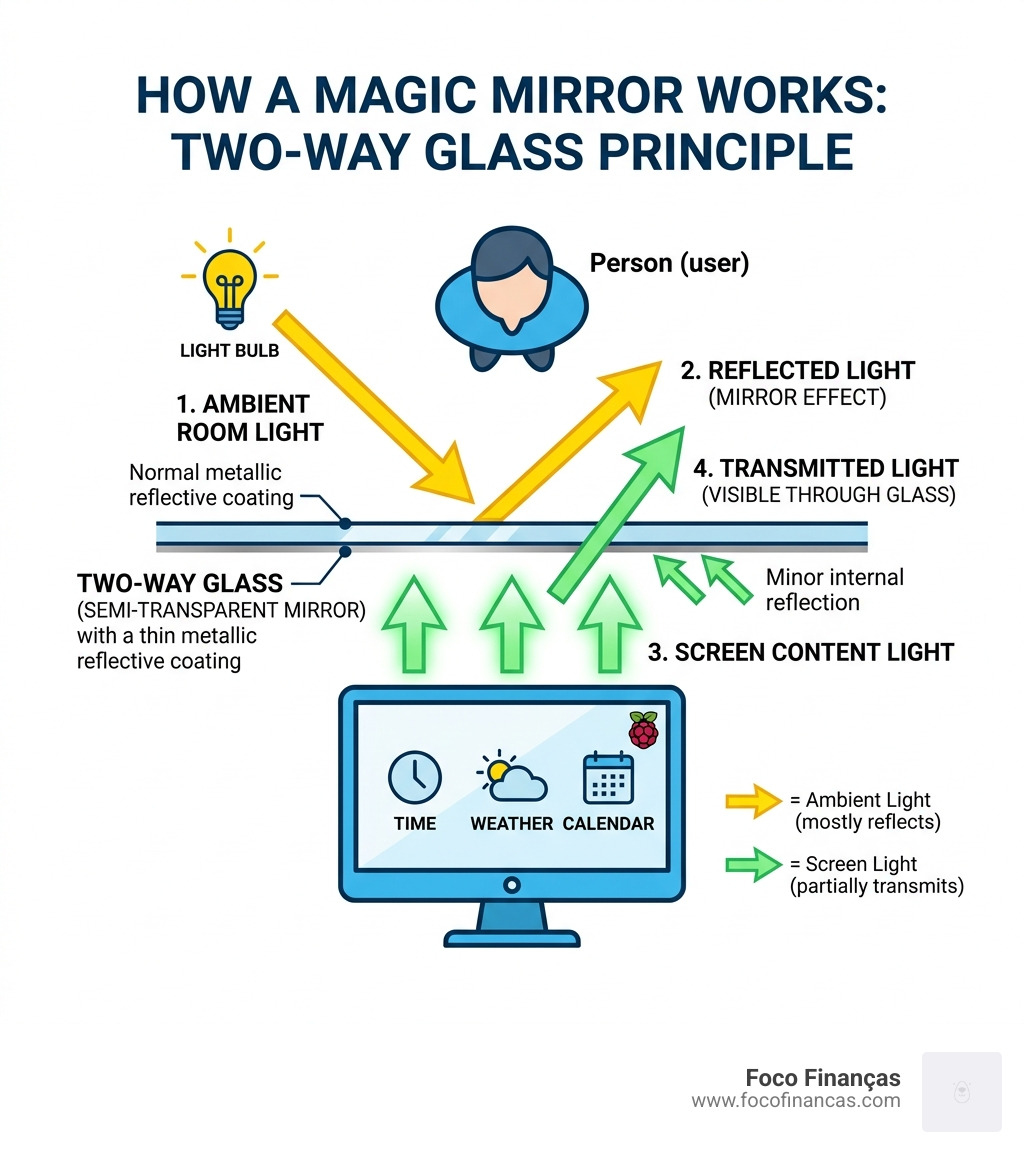
The idea is simple: a screen sits behind semi-reflective glass. The glass acts like a normal mirror, but text and images from the screen shine through. The result looks like something out of a sci-fi film — but it’s surprisingly buildable in a weekend.
MagicMirror² is the open-source software that powers most of these builds. It was created by maker Michael Teeuw and has since grown into one of the most popular Raspberry Pi projects in the world, voted number one in The MagPi magazine’s top 50 Raspberry Pi projects.
The community around it is huge. There are hundreds of third-party modules available — from Spotify playback and Google Calendar to motion sensors and voice control.
Whether you want a sleek hallway display, a family command center, or just a fun weekend build, this guide covers everything from the first terminal command to the final frame assembly.
Hardware and Software Requirements
Before we dive into the code, we need to gather our materials. Building a smart mirror is a marriage of woodworking, electronics, and software. While you can build a “budget” version using an old laptop screen and reflective film, a high-quality build usually involves a dedicated monitor and a proper two-way mirror.
The “brain” of our operation is the Raspberry Pi. While the software can technically run on older models, the modern MagicMirror² framework relies on Electron and Node.js, which are resource-intensive. We’ve found that using a model with at least 2GB of RAM provides the smoothest experience.
| Feature | Raspberry Pi 3A+ | Raspberry Pi 3B+ | Raspberry Pi 4 (2GB/4GB) |
|---|---|---|---|
| Performance | Moderate | Good | Excellent |
| Form Factor | Slim/Compact | Standard | Standard |
| Connectivity | Wi-Fi/Bluetooth | Ethernet + Wi-Fi | Dual Micro-HDMI + Wi-Fi |
| Power Needs | 2.5A Micro-USB | 2.5A Micro-USB | 3.0A USB-C |
| Best For | Ultra-slim frames | Standard builds | Feature-heavy builds |
To understand deeper why we choose this specific hardware, you can check out our guide on why Raspberry Pi is perfect for your smart mirror.
Essential Hardware for Your Magic Mirror Raspberry Pi Tutorial
To follow this magic mirror raspberry pi tutorial successfully, you will need the following components:
- Raspberry Pi 4: The gold standard for this project. It handles multiple modules and smooth transitions without breaking a sweat.
- MicroSD Card: A 16GB Class 10 card is the minimum. We recommend high-endurance cards to prevent corruption during 24/7 operation.
- Power Supply: Use an official 3A USB-C power supply. Many “black screen” issues are actually caused by undervoltage from cheap phone chargers.
- Monitor: A 15.6-inch to 24-inch monitor is the “sweet spot.” Look for one with a slim profile and an HDMI input. Portable USB-C monitors are excellent for “super-slim” builds.
- Two-Way Mirror: This is the “magic.” You can use a 3mm acrylic two-way mirror (lighter and safer) or glass (better clarity).
- HDMI Cable: Depending on your Pi model, you’ll need a standard HDMI or a Micro-HDMI to HDMI cable.
- Frame Materials: A shadow box from a craft store or a custom-built wooden frame to house the electronics.
Step-by-Step Software Installation and MagicMirror² Setup
Now that we have our hardware, let’s get the software running. We’ll start by preparing the OS. We recommend using the Raspberry Pi Imager tool. Choose “Raspberry Pi OS (64-bit)” for the best performance on a Pi 4. Before flashing, click the cog icon to pre-configure your Wi-Fi settings and enable SSH access. This allows us to work “headless” from another computer.
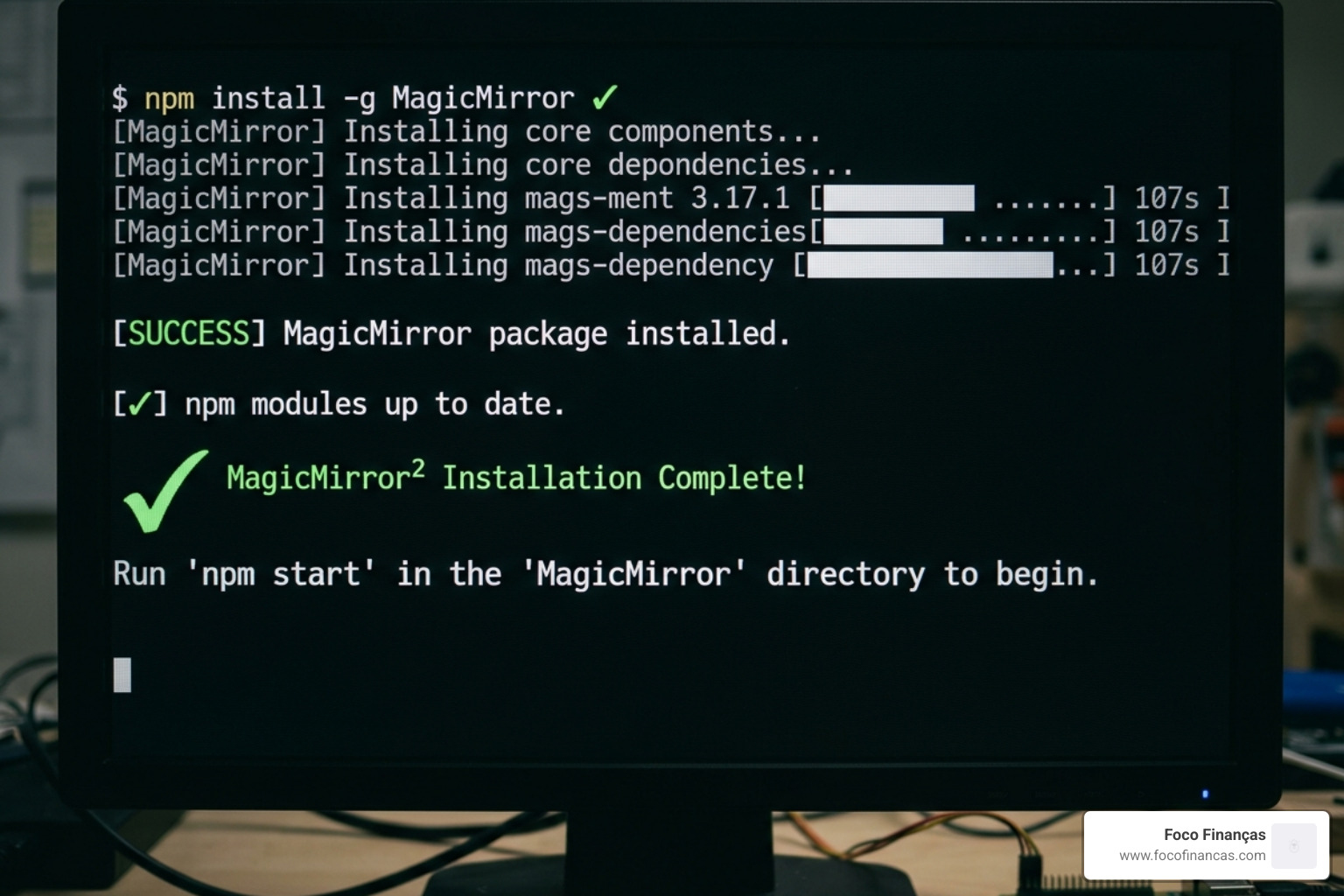
Once the Pi boots up and connects to your network, find its IP address and connect via terminal (e.g., ssh pi@192.168.1.XX).
- Update the System: Always start with a fresh slate.
sudo apt update && sudo apt upgrade -y - Install Node.js: MagicMirror² runs on Node.js. Use the following command to install the latest stable version:
curl -sL https://deb.nodesource.com/setup_18.x | sudo -E bash -sudo apt install -y nodejs - Clone the Repository:
git clone https://github.com/MichMich/MagicMirror - Install the Software:
cd MagicMirrornpm installNote: This can take 10 to 20 minutes depending on your internet speed and Pi model. Grab a coffee! - Create Your Config File:
cp config/config.js.sample config/config.js
For a more comprehensive look at the installation logic, see our article on building a smart mirror with Raspberry Pi.
Configuring the config.js File
The config.js file is where the magic happens. It dictates which modules appear, where they sit on the screen, and what data they pull. You can edit this using a text editor like Nano: nano config/config.js.
The file is structured into a modules array. Each module has a position (like top_right, bottom_left, or upper_third).
- Clock: Usually placed in
top_left. You can toggle between 12-hour and 24-hour formats. - Weather: Requires an API key from OpenWeatherMap. Once added, it shows current conditions and forecasts.
- Calendar: You can link your Google or iCloud calendar using a public
.icsURL. - Newsfeed: Displays scrolling headlines from your favorite RSS feeds.
If you get stuck on the syntax, we have a dedicated magic mirror coding guide and a tutorial on how to customize MagicMirror UI to help you align everything perfectly.
Customizing Your Magic Mirror Raspberry Pi Tutorial Interface
The default modules provide a great foundation, but customization is what makes the mirror yours. You can change the language setting to your native tongue and adjust units from metric to imperial if you prefer Fahrenheit over Celsius.
One of the most popular customizations is the Compliments module. By default, it might say “Hey there, sexy!” which some users find a bit much for a family setting. You can easily edit the compliments.js file or the config section to include personalized messages like “You look great today!” or “The battle rages on!”
To dive deeper into visual styling, check out our guide to customize MagicMirror UI 2.
Adding Third-Party Modules to Your Magic Mirror Raspberry Pi Tutorial
The real power of this magic mirror raspberry pi tutorial lies in the hundreds of community-made modules available on GitHub.
- Google Calendar: Beyond the basic calendar, advanced modules can show color-coded events for the whole family.
- Spotify: Display the currently playing song along with the album art. It turns your mirror into a beautiful music dashboard.
- PIR Motion Sensors: We love this feature for power saving. A PIR sensor detects when you walk into the room and triggers the monitor to turn on. When you leave, the screen goes black to save energy.
- Voice Control: Using integrations like Mycroft, you can ask your mirror for the news or to change the display.
To install a third-party module, you typically navigate to the MagicMirror/modules folder, use git clone [URL], and then add the module’s configuration block to your main config.js. For more advanced UI tweaks, see customize MagicMirror UI 3.
Building the Physical Frame and Final Assembly
With the software running, it’s time for the “maker” phase. A common choice is using a “shadow box” frame from a craft store, which provides enough depth to house the monitor and the Pi.
- Monitor Disassembly: Most monitors have bulky plastic bezels. Carefully pry these off (careful with the internal ribbon cables!) to reduce the thickness of your build.
- Ventilation: Raspberry Pis, especially the Pi 4, generate heat. Drill ventilation holes at the top and bottom of your frame to allow for natural convection.
- The Mirror Effect: If you aren’t using a professional two-way mirror, you can apply reflective window film to a piece of clear glass or acrylic. Use a soapy water solution and a squeegee to remove bubbles. Don’t worry if a few tiny bubbles remain; they often disappear as the film cures over 24-48 hours.
- Mounting: Use gaffer tape or heavy-duty mounting tape to secure the monitor to the mirror. Black out any areas of the mirror not covered by the screen using black construction paper to prevent light leakage.
For those just starting their DIY journey, our beginner’s guide to building a smart mirror offers more granular assembly tips.
Frequently Asked Questions about Magic Mirrors
How do I stop the screen from going black?
By default, Raspberry Pi OS will turn off the display after a period of inactivity to save power. For a magic mirror, we want the display to stay on.
- Open the terminal and run
sudo raspi-config. - Navigate to Display Options and find Screen Blanking.
- Select No to disable it.
- Alternatively, you can edit the
.config/wayfire.inifile on newer OS versions to set the idle timeout to zero.
Can I use a Raspberry Pi Zero for this project?
While the Raspberry Pi Zero is adorable and cheap, we generally don’t recommend it for a primary MagicMirror² build. The software relies on Electron, which is quite heavy for the Zero’s single-core processor. You will likely experience long boot times and laggy animations. If you must use a Zero, look for “MagicMirror-Lite” configurations or custom CSS-only dashboards that don’t require the full Electron engine. For a reliable experience, stick to the Pi 3B+ or Pi 4.
How do I set MagicMirror to start automatically on boot?
You don’t want to manually type npm start every time your house has a power flicker. We recommend using PM2, a production process manager.
- Install PM2:
sudo npm install -g pm2 - Create a shell script (e.g.,
mm.sh) that navigates to the MagicMirror folder and runsnpm start. - Start the script with PM2:
pm2 start mm.sh - Tell PM2 to save this setup:
pm2 save - Set PM2 to run on startup:
pm2 startupNow, your mirror will automatically recover and launch the interface every time the Pi reboots.
Conclusion
Building a smart mirror is one of the most rewarding projects in the Raspberry Pi ecosystem. It combines the tactile satisfaction of woodworking with the intellectual challenge of software configuration. By following this magic mirror raspberry pi tutorial, you’ve transformed a standard piece of glass into a futuristic “battle station” for your daily schedule.
At Foco Finanças, we believe that technology should work for you, making your morning routine smoother and your home smarter. If you’re looking for more ways to enhance your build, explore our magic mirror dashboard templates to make your hallway pop or check out more info about smart mirror services for professional-grade components.
The MagicMirror² community is always growing. Don’t be afraid to experiment with new modules, add a camera for facial recognition, or even integrate voice commands. Your mirror is limited only by your imagination (and perhaps your Wi-Fi signal!). Happy building!
