
What a Home Assistant Magic Mirror Can Do for Your Smart Home
A home assistant magic mirror is a two-way mirror with a monitor hidden behind it, running smart home software that displays useful information — like weather, room temperatures, calendar events, and security status — right in your reflection.
Here is a quick overview of how it works:
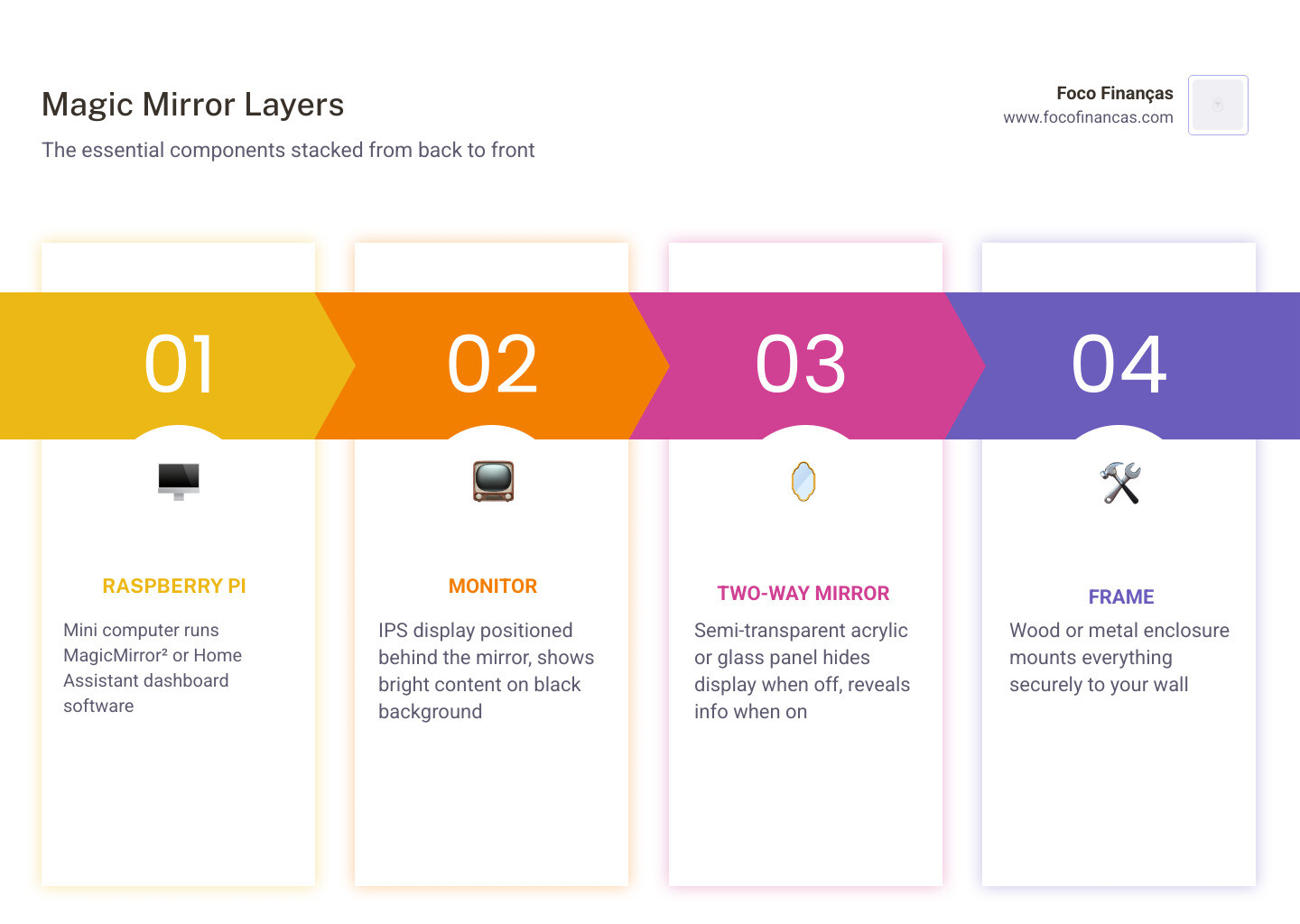
- A monitor sits behind a semi-transparent two-way mirror panel
- A Raspberry Pi (typically a Pi 4 or Pi 5) runs either MagicMirror² software or a Home Assistant Lovelace dashboard
- Modules or custom cards pull live data from Home Assistant via WebSocket connections or API tokens
- The display shows only bright content on a black background, so text and widgets appear to float in the mirror
The result is a piece of furniture that looks like an ordinary mirror but doubles as a live smart home dashboard.
These builds have attracted serious community attention — one Home Assistant Magic Mirror project showcase drew over 23,000 views, and another thread on replacing MagicMirror with a Lovelace dashboard pulled nearly 22,000. Clearly, a lot of people want this on their wall.
The good news: you do not need to be an electrical engineer to build one. With a Raspberry Pi, an off-the-shelf monitor, a two-way mirror panel, and some open-source software, you can put together a working smart mirror in a weekend.
This guide walks you through every step — hardware, software, Home Assistant integration, and automation.
Home assistant magic mirror word roundup:
Essential Hardware for Your Home Assistant Magic Mirror
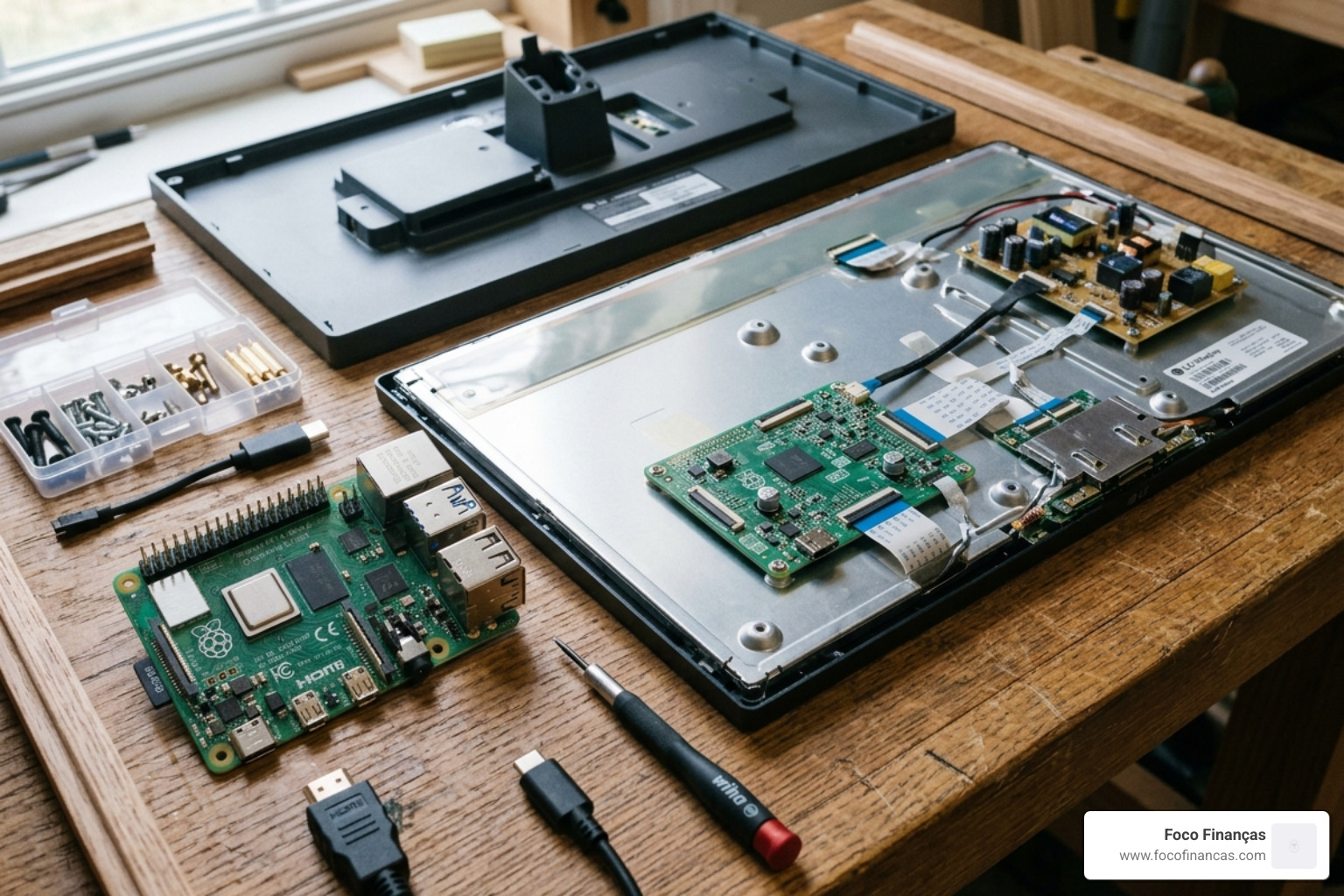
Building a home assistant magic mirror starts with gathering the right physical components. Think of the hardware as the body and the software as the brain. If the body isn’t sturdy, the brain won’t have a very nice place to live!
The Computing Power: Raspberry Pi 4 or 5
While older projects often used the Raspberry Pi Zero, we’ve found that modern interfaces demand more “oomph.” A Raspberry Pi 4 (4GB) is the current gold standard, though the Raspberry Pi 5 is highly recommended for 2026 builds due to its smoother handling of high-resolution dashboards and face recognition tasks. You can learn more about why Raspberry Pi is perfect for your smart mirror to understand the technical advantages.
The Display: IPS Monitor
You’ll want a monitor with high contrast and good brightness (at least 300 nits, though 400+ is better). An IPS panel is preferred because it offers wider viewing angles—essential when you’re looking at a mirror from different heights. Many DIYers find success using second-hand 24-inch Dell P-series or LG UltraSlim monitors. To get started with the assembly, check out our guide on building a smart mirror with Raspberry Pi.
The Mirror: Glass vs. Acrylic
This is the most critical aesthetic choice. You need a “two-way” or “spy” mirror. This material reflects light from the front while allowing light from the monitor to pass through from the back.
| Feature | Acrylic Two-Way Mirror | Glass Two-Way Mirror |
|---|---|---|
| Cost | Budget-friendly ($20–$50) | Premium ($100–$200+) |
| Weight | Lightweight and easy to hang | Heavy (requires sturdy anchors) |
| Clarity | Can have slight “funhouse” distortion | Crystal clear, professional look |
| Durability | Scratches easily | Scratch-resistant and long-lasting |
Software Setup: MagicMirror² vs. Home Assistant Dashboards
Once your hardware is prepped, you face a fork in the road: do you use the classic MagicMirror² software or a native Home Assistant Lovelace dashboard?
The Traditional Route: MagicMirror²
MagicMirror² is an open-source, Electron-based framework designed specifically for this purpose. It has a massive library of third-party modules. It’s perfect if you want a highly “widgetized” look with text that feels like it’s part of the glass. For a deep dive into the installation process, see our smart mirror program complete guide.
The Modern Route: Lovelace in Kiosk Mode
A growing trend in the community involves ditching MagicMirror² entirely and just running a Home Assistant dashboard in “Kiosk Mode” (which hides the sidebars and headers). This allows you to use the custom cards you’ve already built in HA. By using tools like layout-card and card-mod, you can create a sleek, vertical interface that looks stunning behind glass. We have a setting up your smart mirror: a complete guide that covers these different software philosophies.
Top Magic Mirror Modules for Home Assistant
If you stick with the MagicMirror² software, you’ll need specific modules to talk to your smart home. Here are the heavy hitters:
- MMM-HomeAssistantDisplay: Uses Jinja2 templates for ultimate flexibility.
- MMM-homeassistant-sensors: A simpler way to list specific sensor values.
- MMM-HomeAssistant: Great for MQTT-based integrations.
For more inspiration on what these can look like, read about displaying Home Assistant data on your MagicMirror.
Integrating Home Assistant Magic Mirror Modules
The “magic” happens when your mirror starts reacting to your home in real-time. To make this happen, the mirror needs a secure way to talk to your Home Assistant instance. Most modern modules use a Long-Lived Access Token and a WebSocket connection to ensure that when you turn off a light in the kitchen, the icon on your mirror updates instantly.
For those interested in the technical side of the setup, our magic mirror coding guide provides the snippets you’ll need to get started.
Configuring MMM-HomeAssistantDisplay for Real-Time Data
The MMM-HomeAssistantDisplay module is incredibly powerful because it supports Home Assistant’s own Jinja2 templating engine. This means you can write logic like: “If the trash sensor is ‘on’, show a red garbage icon; otherwise, stay hidden.”
You can also apply custom CSS to make your data pop. Whether you want a minimalist look or something more futuristic, you can customize MagicMirror UI or explore more advanced styling in our customize MagicMirror UI 3 guide.
Using MMM-homeassistant-sensors for Smart Home Status
If you just want a clean list of temperatures, humidity levels, or light statuses, MMM-homeassistant-sensors is your best friend. It allows you to define “pretty names” for your entities so that sensor.bedroom_temp_01 simply shows up as “Bedroom.” You can even set state-specific icons—for example, a yellow glowing bulb when a light is on and a greyed-out bulb when it’s off. To learn how to tweak these visuals, see our guide on how to customize MagicMirror UI 2.
Advanced Features and Automation
A home assistant magic mirror shouldn’t just sit there; it should be smart enough to know when you’re in the room.
Face Recognition and Touch Screens
Some advanced builders, like those featured in the Home Assistant Community, have integrated Pi Noir cameras and OpenCV for face recognition. This allows the mirror to show your calendar when you stand in front of it, but hide private data when a guest is nearby.
You can also add an Infrared (IR) touch frame in front of the glass. This turns your mirror into a giant tablet, allowing you to toggle lights or start your robot vacuum with a tap. This level of interaction truly makes the device a smart mirror for smart home control.
Controlling Your Home Assistant Magic Mirror with Presence Detection
Leaving a monitor on 24/7 is a waste of energy and can shorten the screen’s lifespan. By using a PIR (Passive Infrared) sensor or an mmWave sensor (like the Aqara FP1), you can tell Home Assistant to turn the screen on only when someone enters the room.
This is often handled via CEC (Consumer Electronics Control) over the HDMI cable. When the sensor detects motion, Home Assistant sends a command to the Pi, which wakes the monitor. When the room is empty for five minutes, it puts the monitor back to sleep. This is a staple of home automation with a DIY smart mirror.
Frequently Asked Questions about Home Assistant Magic Mirrors
How do I prevent screen burn-in on my mirror?
Burn-in occurs when static images stay on a screen for too long. To prevent this:
- Use Motion Sensors: Only turn the screen on when needed.
- Dynamic Positioning: Some modules allow you to “jitter” or move the text slightly every few minutes.
- Black Backgrounds: Since black pixels are essentially “off” on many monitors, using a true black background significantly reduces wear.
- DPMS Settings: Configure your Raspberry Pi’s Display Power Management Signaling to handle sleep cycles properly.
Can I use ESPHome instead of a Raspberry Pi for small mirrors?
Yes! For small “status mirrors” (like one that just shows the time and temperature in a hallway), you can use an ESP32 with an OLED display and ESPHome. This is much cheaper and more energy-efficient than a full Raspberry Pi setup. While you won’t get the full MagicMirror² interface, you can use I2C protocols to display simple text and icons directly from Home Assistant.
How do I generate a long-lived access token in Home Assistant?
- Log into your Home Assistant instance.
- Click on your User Profile (your name/icon at the bottom of the sidebar).
- Scroll down to the Long-Lived Access Tokens section at the very bottom.
- Click Create Token, give it a name (like “Magic Mirror”), and copy the long string of characters. Note: You will only see this token once, so save it in a secure password manager!
Conclusion
Building a home assistant magic mirror is one of the most rewarding DIY projects you can undertake. It transitions your smart home from something you “manage” on your phone to something that is naturally integrated into your daily routine. Imagine brushing your teeth while seeing your morning commute traffic, the day’s weather, and a reminder that you left the garage door open—all without touching a single device.
We hope this guide has given you the confidence to start your own build. Whether you use a Raspberry Pi 5 for high-end face recognition or a simple ESP32 for a minimalist status display, the result is sure to be the centerpiece of your home.
Ready to start designing? Check out our magic mirror dashboard templates to make your hallway pop or explore more smart home hardware to find your next project. Happy building!
