
What Is a Pi Mirror and Can You Really Build One Yourself?
A pi mirror is a DIY smart mirror built using a Raspberry Pi computer mounted behind a two-way mirror, turning an ordinary reflective surface into a live display for useful information like weather, calendar events, news, and more.
Here is what you need to get started:
- A Raspberry Pi (model 4 recommended, 2GB RAM minimum)
- A monitor (1080p, at least 300 nits brightness, slim profile)
- A two-way mirror surface (glass, acrylic, or mirror film)
- A microSD card (16GB minimum, Class 10)
- MagicMirror² software (free and open-source)
- A frame or enclosure to house everything
That is the short answer. If you want the full build guide, keep reading.
The idea sounds like something out of a sci-fi movie. You walk up to your mirror in the morning and it quietly shows your schedule, the weather outside, and today’s headlines – all while still working as a normal mirror.
The good news? It is much more achievable than it looks.
The software that powers most pi mirror builds is called MagicMirror², an open-source project created by developer Michael Teeuw. It was voted number one in the MagPi Top 50 by the Raspberry Pi community and has hundreds of third-party modules built by developers around the world.
Whether you want a frameless modern design or a budget-friendly first build using mirror film, there is a path that fits your skill level and budget.

Essential Hardware for Your Pi Mirror Project
Before we dive into the code, we need to gather our physical components. Building a pi mirror is a balancing act between aesthetics and electronics. You want a display that is bright enough to punch through the mirror glass but slim enough to not look like a bulky television hanging on your wall.
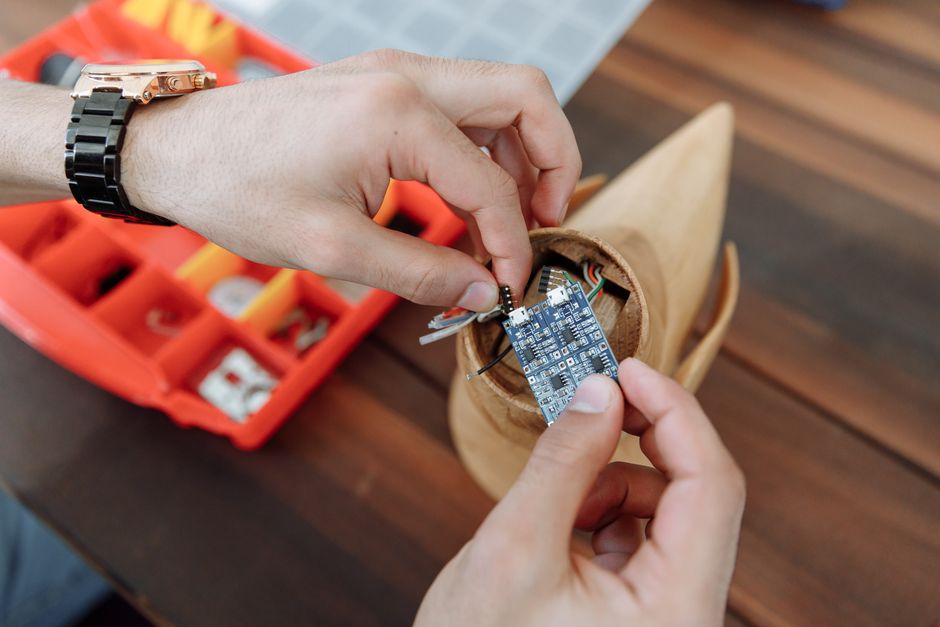
The Brain: Raspberry Pi 4
While you can technically use a Raspberry Pi 3, we highly recommend the Raspberry Pi 4 (2GB or 4GB RAM). It offers much better performance for rendering the web-based interface of the mirror software. If you are aiming for a “super-slim” build, the Raspberry Pi 3 Model A+ is a great alternative due to its smaller footprint.
The Display: Monitor Selection
Your monitor is the most expensive part of the build. To ensure your text is crisp and readable through the glass, look for a monitor with at least 300 nits (or cd/m²) of brightness. An IPS panel is preferred because it offers better viewing angles. For the best result, we suggest a 1080p resolution; 4K is usually overkill for a mirror and generates unnecessary heat.
The Reflective Surface: Mirror Materials
This is where most beginners get stuck. You have three main options, each with its own pros and cons:
- Two-Way Glass: The professional choice. It looks exactly like a real mirror but is heavy and expensive (often over $300 for large sizes).
- Acrylic Two-Way Mirror: A great middle ground. It’s lightweight and easier to drill through, but it can have a slight “funhouse” warp if not mounted perfectly flat.
- Mirror Film/Tint: The most budget-friendly option. You apply this to a regular piece of glass or plexiglass. It takes patience to avoid bubbles, but it’s a fantastic way to learn.
Power and Storage
Don’t skimp on the power supply! Most “software” glitches in a pi mirror are actually caused by undervoltage. Use a high-quality 5V 3A USB-C power supply designed specifically for the Pi 4. For storage, a 16GB Class 10 microSD card is the minimum; anything slower will make the interface feel sluggish. You may also need right-angle HDMI adapters to keep the profile slim.
For more details on getting started, check out our Beginners Guide to Building a Smart Mirror.
Step-by-Step Software Setup and Installation
Once your hardware is ready, it’s time to bring the “magic” to life. We will be using the Raspberry Pi OS (32-bit is usually the most stable for this project).
Preparing the OS
We recommend a “headless” setup. This means you’ll configure the Pi to connect to your Wi-Fi and enable SSH before you even plug it into a monitor. You can do this easily using the Raspberry Pi Imager tool. Once flashed, insert the card into your Pi and power it up.
Connecting via SSH
Open a terminal on your computer and type:
ssh pi@raspberrypi.local (or whatever hostname you set).
Once inside, the first thing we always do is update the system:
sudo apt update && sudo apt upgrade -y
Installing Node.js
MagicMirror² runs on Node.js. To install the latest stable version (Node 18 is a solid choice), run:
curl -sL https://deb.nodesource.com/setup_18.x | sudo -E bash -
sudo apt install -y nodejs
For a deeper dive into the technical nuances of the OS, refer to this guide on Configuring the Raspberry Pi | Mirror. For a full software walkthrough, see our Setting Up Your Smart Mirror: A Complete Guide.
Installing the MagicMirror² Core on Your Pi Mirror
Now we get to the main event. We are going to clone the official repository from GitHub.
- Navigate to your home directory:
cd ~ - Clone the repo:
git clone https://github.com/MichMich/MagicMirror - Enter the folder:
cd MagicMirror - Install the dependencies:
npm install
This process can take up to 10-20 minutes depending on your internet speed. Once finished, you need to create your configuration file. The software comes with a sample to get you started:
cp config/config.js.sample config/config.js
You can now test it by running npm start. If you are working via SSH, you won’t see the mirror on your laptop, but it should launch on the monitor connected to the Pi. For more advanced tips, read Building a Smart Mirror with Raspberry Pi.
Automating Your Pi Mirror with PM2 and Kiosk Mode
You don’t want to manually type commands every time the power flickers. We want our pi mirror to boot directly into the interface. To do this, we use a process manager called PM2.
- Install PM2:
sudo npm install -g pm2 - Tell PM2 to start at boot:
pm2 startup(Follow the command instructions it gives you). Create a shell script named
mm.shin your home directory:cd ~/MagicMirror DISPLAY=:0 npm startMake it executable:
chmod +x mm.sh- Start the mirror with PM2:
pm2 start mm.sh - Save the state:
pm2 save
Now, your mirror will automatically recover after a reboot. You should also go into sudo raspi-config to set your Pi to “Autologin to Desktop” and rotate the display if your monitor is mounted vertically (display_rotate=1 in /boot/config.txt).
For those looking for a super-slim smart mirror, minimizing the software footprint is key to keeping the hardware cool in tight spaces.
Building the Physical Frame and Mirror Surface
The “wow” factor of a pi mirror comes from the craftsmanship of the frame. You are essentially building a shadow box that holds a monitor tight against a piece of glass.
The Shadow Box Design
Your frame needs to be deep enough to house the monitor, the Pi, and the cables. A common trick is to make the frame about 2.5 inches larger than the monitor dimensions to give yourself “wiggle room” for mounting.
Managing Light Leakage
One of the most important steps is ensuring no light leaks from behind the mirror. If your monitor is smaller than your mirror glass, you must cover the gaps. We recommend using heavy black cardstock or painting the back of the glass (the non-monitor areas) with matte black paint. This ensures that only the screen’s information shines through.
Assembly Tips
- Ventilation: The Raspberry Pi 4 runs hot. Drill several ventilation holes in the top and bottom of your frame to allow for natural convection.
- Fasteners: Use nylon bolts and spacers when mounting electronics to acrylic. Metal screws can easily crack the acrylic if over-tightened.
- VHB Tape: Use Very High Bond (VHB) double-sided foam tape to secure the monitor’s driver boards to the back of the panel.
For a detailed construction walkthrough, visit our DIY Smart Mirror: A Step-by-Step Guide.
Customizing Modules and Advanced Features
The beauty of MagicMirror² is its modularity. Everything you see—the clock, the weather, the news—is a separate module that you can move, resize, or replace.
Core Modules
- Google Calendar: You can sync your family schedule by using your private iCal link from Google Calendar settings.
- Weather: Most users use the OpenWeatherMap API. You’ll need to sign up for a free API key to get local data.
- Newsfeed: You can pull in any RSS feed, from the BBC to your favorite tech blog.
Advanced Upgrades
If you want to go beyond the basics, the community has created some incredible additions:
- Voice Control: Integrate Alexa Voice Service or Google Assistant to talk to your mirror.
- Facial Recognition: Using a Raspberry Pi Camera and the OpenCV library, the mirror can detect who is looking at it and show a personalized dashboard (e.g., showing your calendar instead of your partner’s).
- PIR Motion Sensors: This is our favorite “pro” tip. A PIR sensor can turn the monitor off when the room is empty and instantly turn it on when you walk up. This saves electricity and extends the life of your monitor.
- ReflectOS: If you find the standard MagicMirror² setup too technical, ReflectOS is an alternative operating system that offers a more “plug-and-play” web-app experience for arranging your dashboard.
Discover Why Raspberry Pi is Perfect for Your Smart Mirror and how it handles these advanced tasks with ease.
Frequently Asked Questions about Smart Mirrors
Can I build a smart mirror without a Raspberry Pi?
Yes, you can! While the Pi is the gold standard, some people use old Android tablets or even small PCs. However, the software support is vastly superior on the Pi. If you’re curious about alternatives, read our guide on How to Build a Smart Mirror Without Raspberry Pi.
What is the best monitor for a smart mirror?
The “best” monitor is usually a “portable monitor” designed for laptops. These are often USB-C powered and ultra-slim (under 0.5 inches). Look for IPS panels for the best contrast. Avoid monitors with bulky plastic bezels; if you buy a standard desktop monitor, you will likely need to “de-bezel” it (take the plastic case off) to make it fit in a slim frame.
How do I troubleshoot a black screen or module errors?
- Check Config Syntax: Run
npm run config:checkinside the MagicMirror folder. A single missing comma can break the whole display. - Power Issues: If the mirror restarts randomly, your power supply is likely too weak.
- PM2 Logs: If the mirror won’t start, type
pm2 logs mmto see the exact error message.
Conclusion
Building a pi mirror is one of the most rewarding DIY projects a tech enthusiast can undertake. It combines woodworking, electronics, and software engineering into a single, functional piece of home decor.
At Foco Finanças, we believe that the best way to learn about technology is to build it yourself. By following this guide, you aren’t just making a mirror; you’re creating a personalized information hub that reflects your unique needs. Whether you’re inspired by the work of Michael Teeuw or the thousands of GitHub contributors who keep this project alive, there has never been a better time to start.
Ready to dive deeper into DIY tech? Explore more hardware projects on our site and start your next build today!
