
Why a Smart Mirror Calendar Widget Changes How You Start Your Day
A smart mirror calendar widget is a digital display layer built into a two-way mirror that shows your schedule, events, and reminders at a glance — without touching your phone.
Quick answer: What is a smart mirror calendar widget?
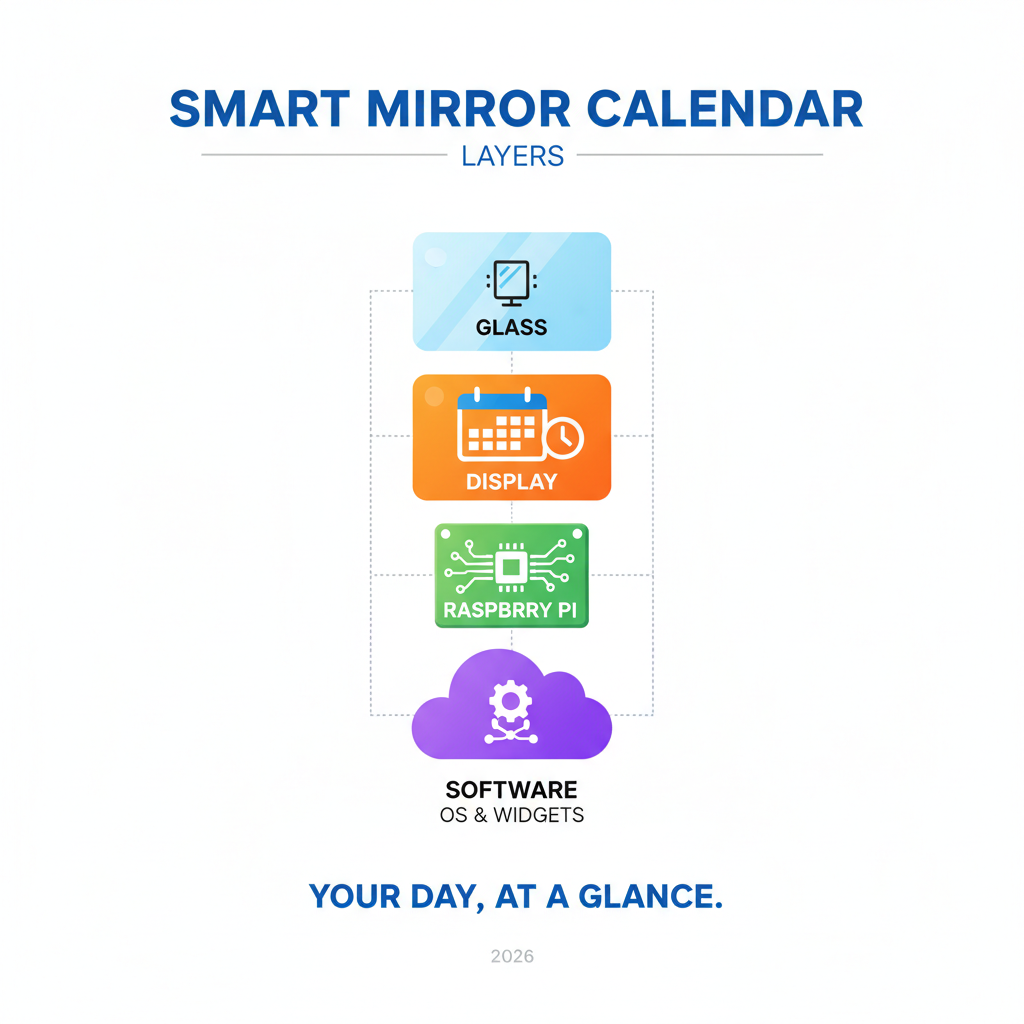
- A screen sits behind a two-way mirror (or mirror film)
- Software like MagicMirror² or DakBoard pulls events from Google Calendar, iCloud, or Outlook
- Your calendar appears as an overlay on the mirror’s reflective surface
- It updates automatically, no manual input needed
- You can show weather, commute times, and family schedules alongside your events
Think about your morning routine. You’re rushing. Someone asks where their permission slip is. Someone else wants to know if there’s soccer practice today. Sound familiar?
That daily scramble is exactly what a smart mirror calendar solves. Instead of everyone asking you what’s happening, the answer is already on the wall.
The best part? You don’t need to be a programmer to build one. Open-source tools like MagicMirror² have large, active communities. Plug-and-play services like DakBoard or Mango Display can be running in under five minutes on hardware you already own — a Raspberry Pi, a Fire TV stick, or even an old tablet.
One DIY builder described replacing their paper family calendar with a touchscreen dashboard that lets every family member add, edit, and delete events directly on the mirror. The questions stopped. The scramble calmed down.
This guide walks you through the best smart mirror calendar widget setups — from minimal glanceable themes to fully interactive family dashboards — so you can find the right fit for your home and your style.
Choosing the Right Smart Mirror Calendar Widget for Your Lifestyle
When we talk about a smart mirror calendar widget, we aren’t just talking about a digital clock with a few dates. We are talking about the “brain” of your home. The right widget should match your aesthetic while providing exactly the amount of information you need to function.
If you are a solo professional, you might want a high-contrast, text-heavy list of upcoming meetings. If you are managing a household of five, you likely need a color-coded grid that looks more like a traditional wall calendar. The beauty of modern software is that you can explore more info about custom widgets to find a balance between form and function.
Minimalist Agenda vs. Full Monthly Views
The first choice you’ll face is how much “screen real estate” you want to give up.
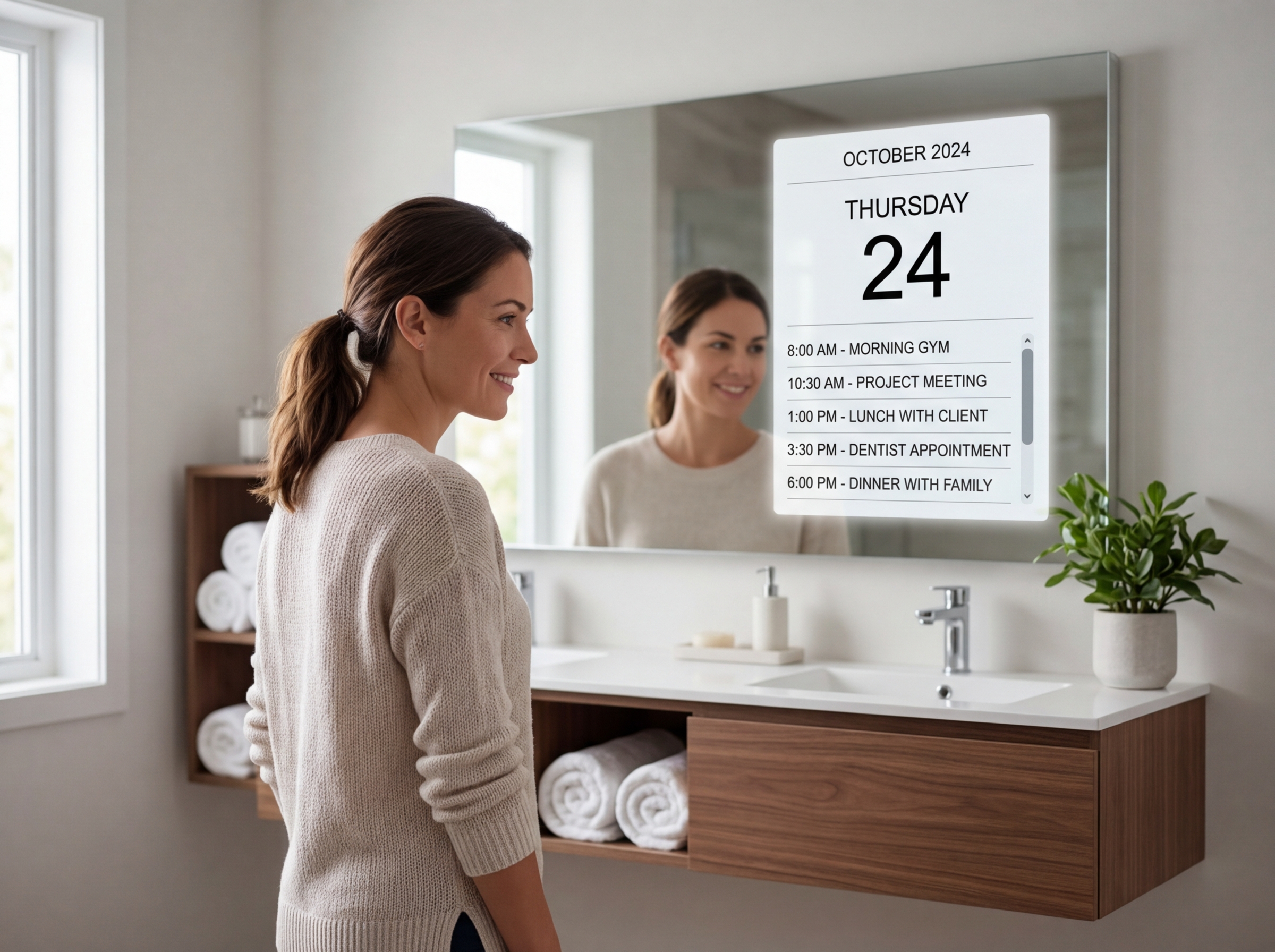
- The Agenda View: This is the ultimate “glanceable” data format. It typically shows the next 5 to 10 upcoming events in a vertical list. It’s perfect for smaller mirrors or for those who want a clean, futuristic look.
- The Weekly View: Modules like
calendar_weeklyoffer a side-by-side comparison of the next 7 to 14 days. This is great for seeing the “shape” of your week without the clutter of a full month. - The Full Monthly Grid: This mimics a traditional paper calendar. It requires a larger monitor (usually 24 inches or more) and is best suited for kitchen or hallway mirrors where the family gathers.
Scaling is key here. If your font is too small, you’ll find yourself squinting through the glass, defeating the purpose of an “ambient” display. Most experts recommend using the “lowerthird” or “topright” regions of the screen to keep the center of the mirror clear for your actual reflection.
Color-Coding Your Smart Mirror Calendar Widget
Visual hierarchy is what makes a digital calendar superior to a paper one. By assigning specific colors to different family members or event categories (e.g., Blue for Dad, Green for School, Red for Urgent), you can process your entire day in a three-second glance.
In the MagicMirror² ecosystem, this is handled through CSS customization. You can define specific symbols—like a soccer ball icon for practice or a briefcase for meetings—using Font Awesome icons. This creates a “scannable” interface that even younger children can understand. If you want to dive deeper into making your mirror look professional, check out these more tips on UI customization.
Essential Hardware and Software for Your DIY Build
Building a smart mirror is a rewarding weekend project, but it requires a specific set of “ingredients.” You essentially have two paths: the DIY “Maker” route or the “SaaS” (Software as a Service) route.
| Component | DIY (Raspberry Pi) | Commercial/SaaS Solution |
|---|---|---|
| Controller | Raspberry Pi 4 ($35-$75) | Fire TV Stick or Tablet ($30-$100) |
| Display | Refurbished LCD Monitor ($20-$100) | Dedicated Smart Display ($300+) |
| Mirror | Two-way Acrylic or Glass ($50-$200) | Pre-built Smart Mirror ($500+) |
| Software | MagicMirror² (Free/Open Source) | DakBoard/Mango Display (Free to $10/mo) |
| Total Est. | $150 – $400 | $400 – $2,000+ |
The Raspberry Pi 4 is the gold standard for these projects because it’s small enough to hide behind a monitor and powerful enough to run multiple widgets simultaneously. You will also need a two-way mirror (glass is clearer, but acrylic is lighter and cheaper) and a monitor with side-facing HDMI ports to keep the build flush against the wall. To ensure your hardware talks to your software correctly, you can learn more about coding your mirror.
Popular Software Platforms: MagicMirror² and Beyond
There are three main “ecosystems” for smart mirror calendars:
- MagicMirror²: This is the open-source community leader. It is highly customizable but requires some comfort with JavaScript and terminal commands. It supports thousands of community modules, including the official MagicMirror² Calendar module, which can handle up to 100 events for up to 365 days in the future.
- DakBoard: A “set it and forget it” solution. It uses a drag-and-drop editor and runs in a web browser. It’s beautiful and easy, though some advanced features require a monthly subscription.
- Mango Display: Similar to DakBoard, it works on almost any device (Fire TV, iPad, Web). It’s praised for its 5-minute setup time and professional digital signage aesthetic.
Setting Up Your Smart Mirror Calendar Widget Integration
Integration is where the magic happens. Most widgets use the iCal format (.ics) to pull data.
- Google Calendar: Requires setting up a project in the Google Cloud Console and using OAuth 2.0 for private calendars.
- Apple iCloud: You’ll need to generate an “App-Specific Password” to allow the mirror to access your encrypted data.
- Outlook/Office 365: Often requires a “Secret Secret” URL or a middle-man sync tool like Microsoft Flow to convert the feed into a format the mirror can read.
For a step-by-step walkthrough on connecting these accounts without losing your mind, refer to our guide to calendar integration.
Advanced Customization: Beyond Basic Scheduling
Once you have your smart mirror calendar widget running, you’ll likely want to add “contextual” data. A calendar is great, but a calendar that tells you to bring an umbrella because it’s raining is better.
Interactive Touchscreens and Motion Sensing
One of the biggest debates in the community is whether a mirror should be interactive.
- The Glancable Approach: The mirror is a passive display. You look at it, get the info, and move on.
- The Touchscreen Approach: Using a monitor like the ASUS BE24ECSBT, you can actually tap the mirror to add or edit events. Recent breakthroughs using AI (like ChatGPT) have allowed non-coders to build full CRUD (Create, Read, Update, Delete) modules for Google Calendar.
To save power and extend the life of your monitor, we recommend a PIR (Passive Infrared) motion sensor. Using a “saturating counter” script, the mirror stays on as long as there is movement in the room and fades to black when you leave. This is much more eco-friendly than 24/7 operation. For the technical side of this, see our JavaScript setup for mirrors.
Customizing Themes with CSS and Symbols
You can transform the look of your mirror by editing the custom.css file. Want your calendar to glow neon blue? Or perhaps you want a minimalist monochrome look? By using CSS classes, you can change font weights, colors, and even the “fading” effect where older events disappear.
Integrating Font Awesome icons allows you to replace boring text with symbols. A “plane” icon for flights or a “fork and knife” for dinner reservations makes the UI feel like a premium product rather than a DIY experiment. You can find more advanced layout tips in our advanced UI setup guide.
Troubleshooting and Best Practices for Long-Term Use
Smart mirrors are “appliances,” meaning they should work consistently without you having to reboot them every morning. However, there are a few common pitfalls to watch out for:
- SD Card Corruption: Raspberry Pis are notorious for corrupting SD cards if they lose power suddenly. Best Practice: Make your filesystem “read-only” once your setup is perfect.
- API Syncing Issues: If your calendar stops updating, it’s usually an API timeout. Setting a polling interval of 10 minutes (600,000 ms) is the sweet spot for keeping data fresh without hitting rate limits.
- ICS File Bloat: One user found their Google Calendar ICS file had grown to 26MB because it contained data dating back to 2005! Best Practice: Clean up your historical data to keep the mirror snappy.
Managing Privacy and Multi-User Calendars
Privacy is paramount, especially if you have guests over. You don’t necessarily want your “Doctor’s Appointment – Colonoscopy” showing up in 40-point font when your neighbors are visiting.
Advanced users implement “Private” tags. You can configure the smart mirror calendar widget to hide any event marked as “Private” or “Sensitive” unless a specific user is detected via facial recognition or a hidden toggle switch. For those looking to secure their dashboard, our JavaScript configuration tips offer some great starting points.
Frequently Asked Questions about Smart Mirror Calendars
Can I sync multiple calendar accounts to one mirror?
Yes! Most software platforms allow you to add multiple “entries” in the configuration file. You can pull your work Outlook calendar, your spouse’s Google Calendar, and the local school’s holiday iCal all into one unified view, each with its own unique color.
How do I prevent my smart mirror from staying on all night?
The most efficient way is a motion sensor. Alternatively, you can set a “cronjob” (a scheduled task) on your Raspberry Pi to turn the HDMI signal off at 11:00 PM and back on at 6:00 AM. This saves electricity and prevents “backlight bleed” from glowing in a dark house.
Is it possible to edit events directly on the mirror?
If you have a touchscreen-enabled monitor behind the two-way glass, yes. You will need a specific module like MMM-GoogleCalendarEventAdder and a virtual keyboard module. While more complex to set up, it turns your mirror into a true family command center.
Conclusion
At Foco Finanças, we believe that technology should serve to simplify your life, not complicate it. A smart mirror calendar widget is more than just a cool gadget; it is a tool for reclaiming your time and reducing the mental load of household management.
Whether you choose a hyper-personalized solution like a WeeksO mirror or dive into the DIY world of MagicMirror², the goal is the same: to start your day with clarity. As smart home ecosystems evolve, we expect to see even deeper integrations—from tracking your habit streaks to displaying real-time transit data—all within the reflection of your morning routine.
Ready to transform your home? Start your smart mirror journey here and take the first step toward a more organized, stress-free morning.
